Change your desktop background from Personalization
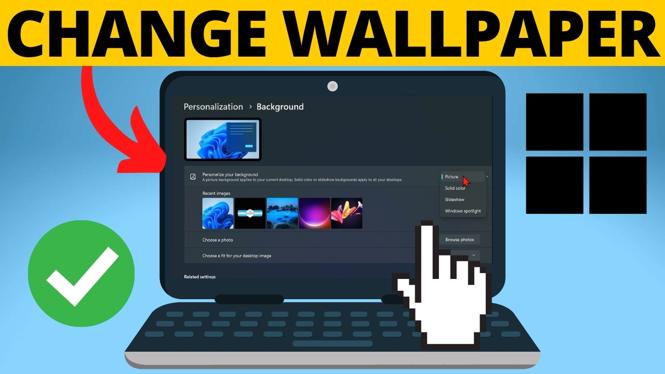
You can change the wallpaper on a Windows 11 laptop or PC directly from the desktop. The quickest route is to right-click an empty part of the desktop, open Personalize, and select Background.
From there, Windows lets you use one of its suggested images, a photo stored on your computer, a solid color, Windows Spotlight, or a slideshow. Your selection previews right away, so you can see how the desktop will look before you close Settings.
Video Tutorial
How to change wallpaper on a laptop or PC
- Go to your desktop and right-click a blank area. Do not right-click an app, folder, or desktop shortcut.
- Select Personalize from the menu that appears.
- In the Personalization settings, select Background.
- Open the drop-down menu for choosing your background type.
- Select the background option you want to use, such as Picture.
- Choose one of the available images below the menu, or select Browse photos to use an image from your computer.
- Close Settings when you are happy with the preview. Your new wallpaper stays applied to the desktop.
You do not need to save a change separately. When you select a wallpaper image, Windows updates the desktop preview immediately. You can minimize or close Settings to check the result on the full desktop.
Use one of your own photos as wallpaper
A personal photo is a simple way to make your laptop or PC easier to recognize. In the Background section, choose Picture from the background drop-down menu. Windows then shows picture choices below it.
If the photo you want is not already listed, select Browse photos. This opens the pictures available on your computer. Select the image you want to use, and Windows sets it as your desktop background.
This is useful for downloaded images, screenshots, family photos, artwork, or a company image you have saved locally. Pick the file you want, then return to the desktop to see the new wallpaper.
If you do not like the result, go back to Personalize and Background. You can select a different image at any time. Changing the wallpaper again follows the same steps and only takes a few clicks.
Choose a different background type
The background drop-down menu does more than let you choose a single picture. It also includes several ways to change the look of your desktop.
- Picture: Uses one image as your desktop wallpaper. Choose a suggested image or use Browse photos for a file on your PC.
- Solid color: Replaces the image with one plain background color. This can be useful if you prefer a cleaner desktop.
- Windows Spotlight: Displays different pictures from Windows over time, so your background changes without choosing each image yourself.
- Slideshow: Uses a rotating set of pictures instead of one fixed wallpaper.
After selecting one of these options, look below the drop-down menu. Windows displays the related choices there. For example, selecting Picture shows image choices and the Browse photos button. The available controls change based on the background type you select.
Check the wallpaper preview before you finish
The preview in Personalization is helpful when you are trying several options. Select a picture and check the preview. If it looks right, minimize the Settings window or close it to view the wallpaper across the full desktop.
This is also a quick way to compare a personal photo with the images Windows provides. You can keep changing selections until you find one that works for your screen and desktop icons.
Desktop wallpaper and lock screen are separate
The steps above change the desktop wallpaper, also called the desktop background. Your lock screen is the image shown when the PC is locked, and it is separate from the desktop background. Changing the desktop wallpaper does not automatically mean the lock screen image changes too.
If your goal is to refresh the desktop you see after signing in, use Personalize and Background. Start with Picture when you want to use a specific photo, or choose Windows Spotlight or Slideshow when you want the background to change over time.
Quick recap
Right-click a blank desktop area, select Personalize, then open Background. Choose Picture, Solid color, Windows Spotlight, or Slideshow. To set your own image, select Browse photos, choose the saved picture, and close Settings once the wallpaper preview looks right.
More Windows 11 Tips & Tutorials:
 Subscribe Now! 🙂

Discover more from Gauging Gadgets
Subscribe to get the latest posts sent to your email.