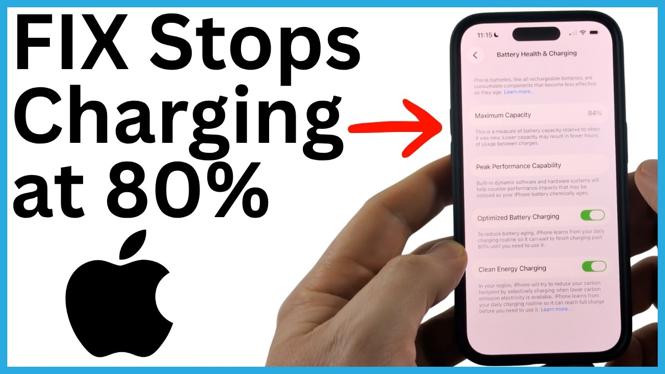
If your iPhone repeatedly stops charging at 80%, check the charging setting in Battery Health & Charging. The video demonstrates that Optimized Battery Charging should be turned on to allow the iPhone to charge past 80% and reach 100%.
An 80% stopping point is usually tied to a battery-protection setting. Your iPhone can limit charging to reduce battery aging, which is useful in some situations but frustrating when you need a full charge. You can check the setting directly in the iPhone Settings app.
Video Tutorial
Let your iPhone charge past 80%
- Open the Settings app on your iPhone.
- Scroll down slightly and tap Battery.
- Scroll down in the Battery screen and select Battery Health & Charging.
- Find Optimized Battery Charging.
- Make sure Optimized Battery Charging is turned on.
- Close Settings and charge your iPhone normally.
According to the setting shown in the video, turning on Optimized Battery Charging lets the iPhone learn your charging habits and charge up to 100%. If the setting is off, the phone can be limited to 80% charging to help protect the battery from aging.
Why an iPhone may stop at 80%
Charging a lithium-ion battery to full capacity all the time can contribute to battery wear over a long period. Apple includes charging management features to reduce that wear. That is why an iPhone may intentionally stop at 80% instead of treating it as a charging failure.
The key symptom is consistency. If your iPhone reaches 80% and stops there often, especially when it is connected to power long enough to normally reach a full charge, check the setting above first. You do not need to replace the charger or restart the phone before checking Battery Health & Charging.
The 80% level can look like a problem because the battery icon still shows that the phone is connected to power. In this case, the phone may be following its charging behavior rather than failing to receive power. Checking the battery setting helps you tell the difference.
What Optimized Battery Charging does
Optimized Battery Charging is designed to learn how you use and charge your iPhone. The video explains that enabling it allows the iPhone to charge to 100% rather than remain limited to 80%.
After you turn the setting on, leave the iPhone connected to its charger and give it time to continue charging. Then check the battery percentage from the Lock Screen, Control Center, or the battery indicator at the top of the display. If the setting was responsible for the 80% cap, the percentage should be able to move beyond 80%.
This setting is found in the same place for the iPhones covered in the video, including iPhone 17, iPhone 16, and iPhone 15 models. Older compatible iPhone models can also use the same Battery and Battery Health & Charging area when that option is available.
Check the setting before changing anything else
Start with this one setting because it directly controls the charging behavior discussed in the video. It takes only a moment to verify, and it avoids changing unrelated options when the iPhone is intentionally stopping at 80%.
Once you open Battery Health & Charging, look carefully at the current state of the Optimized Battery Charging switch. If it is off, turn it on. If it is already on, keep it enabled, connect the iPhone to power, and monitor whether the battery percentage rises past 80%.
If your iPhone later stops at 80% again, return to the same screen and confirm that the setting has not changed. This gives you a clear first place to check whenever your iPhone does not charge all the way to 100%.
Quick checklist
- Your iPhone is connected to power.
- You opened Settings and selected Battery.
- You selected Battery Health & Charging.
- Optimized Battery Charging is turned on.
- You gave the iPhone time to continue charging past 80%.
With Optimized Battery Charging enabled as shown in the video, your iPhone should be able to charge past 80% and continue toward 100%.
More iPhone Tips & Tutorials:
 Subscribe Now! 🙂

Discover more from Gauging Gadgets
Subscribe to get the latest posts sent to your email.