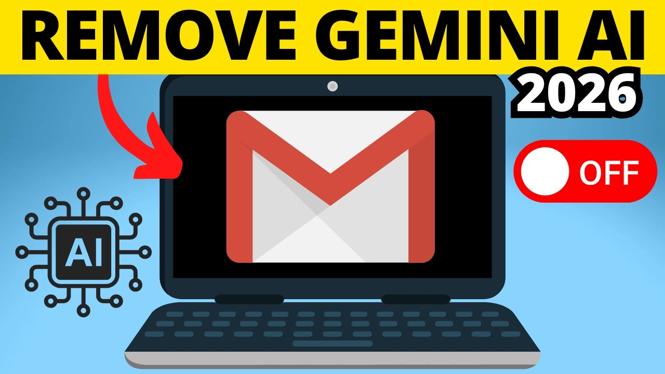
Turn off Gemini-related smart features in Gmail
You can disable the Gmail smart features that control Gemini-related AI assistance from Gmail settings on a computer. The key choice is how much you want to turn off. Disabling both available settings limits smart features in Gmail and prevents Gmail content from being used for smart features in other Google products.
If you still want certain Gmail conveniences, such as spelling and grammar help, email sorting, and Gmail events appearing in Calendar, you may prefer to leave the first setting enabled and turn off only the second one.
Video Tutorial
Disable Gemini smart features from Gmail on desktop
Start at Gmail in a desktop browser. You need to be signed in to the Google account whose Gmail settings you want to change.
- Go to gmail.com and sign in.
- Select the gear icon near the top of Gmail.
- Choose See all settings.
- Stay on the General settings page and scroll down.
- Find the Google Workspace smart features section.
- Select Manage Workspace smart features settings.
- Review the two smart feature settings shown on this page.
- Turn off the settings you do not want to use.
- Select Save to apply the change.
After you save, Gmail applies your updated preference. You may still see Gemini or smart-feature links in Gmail. Selecting one can prompt you to enable smart features again, so avoid enabling them if you want to keep the features disabled.
What each setting changes
The two toggles give you different levels of control. Turning off both is the closest option shown here for fully disabling Gemini-related smart features in Gmail.
The first setting controls smart features within Gmail and Google Workspace. If you switch it off, Gmail no longer provides the related smart assistance. This also means you can lose useful features that depend on it, including spelling and grammar checks, some email sorting, and Gmail events that appear in your calendar.
The second setting is for Smart features and personalization in other Google products. This setting controls whether Gmail content can be used for smart features in other Google products through AI.
Turning off only the second setting is a middle-ground option. Your Gmail content will not be used for those smart features in other Google products, while some smart and Gemini-related functionality can remain available inside Gmail.
Choose the setting that fits your goal
Use both settings turned off if you want to reduce Gemini-related AI features as much as possible in Gmail. This is the better choice if you do not want smart suggestions and do not need the affected Gmail features.
Leave the first setting on and turn off the second setting if your main concern is keeping Gmail content from being used by smart features in other Google products. You keep more of Gmail’s built-in help, but you will still have some smart content within Gmail.
There is a tradeoff either way. Gmail’s smart features can make sorting and writing easier, but disabling them gives you tighter control over how these features work with your email content.
Check that the change was saved
Return to Gmail after selecting Save. If the feature settings page reflects the toggles you chose, your preference has been saved. Some Gemini-related links can remain visible in the Gmail interface even with both settings disabled. Those links do not mean the settings were switched back on.
If you select one of those links later, Gmail may ask you to enable smart features. Read that prompt before confirming anything. Enabling the feature there can change the choice you made in settings.
Changing the setting again later
You can revisit the same Gmail settings area whenever you want. Open the gear icon, select See all settings, scroll to Google Workspace smart features, and choose Manage Workspace smart features settings. Turn the appropriate toggle back on, then save if you decide you want the affected Gmail features again.
This walkthrough covers the desktop Gmail settings shown in the video. The demonstrated controls let you decide between disabling both smart-feature settings or limiting use of Gmail content in other Google products while keeping more Gmail features active.
More Gmail Tips & Tutorials:
 Subscribe Now! 🙂

Discover more from Gauging Gadgets
Subscribe to get the latest posts sent to your email.