How to Connect Xbox Controller to Chromebook
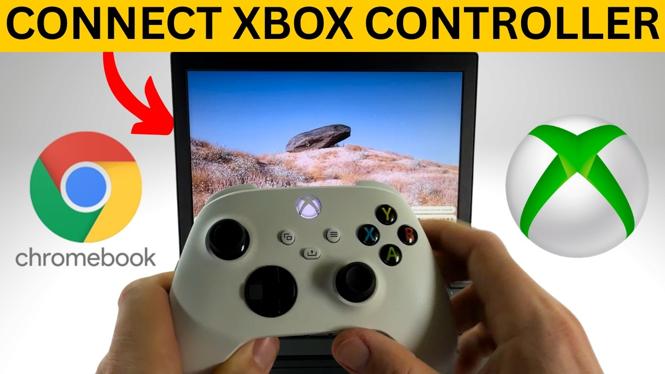
Are you looking to enhance your gaming experience on your Chromebook by using an Xbox controller? Whether you’re diving into cloud gaming, exploring Android games, or simply want a more traditional control setup, being able to connect your Xbox controller to your Chromebook can be a game-changer. This guide will provide a step-by-step tutorial on how to pair and set up your Xbox controller with your Chromebook, ensuring you’re ready to game efficiently and effectively.
Video Tutorial
Why You Might Be Looking for This Tutorial
Many Chromebook users are discovering the advantages of using an Xbox controller while gaming. By following this tutorial, you can gain the following benefits:
- Enhanced Control: A physical controller can provide superior precision compared to a touchpad or touchscreen.
- Cloud Gaming Compatibility: Services like Xbox Game Pass Ultimate make it possible to play console-quality games on your Chromebook.
- Convenience: Easily switch between devices for gaming, whether using a wireless or wired connection.
Steps to Connect Xbox Controller to Chromebook
Follow these straightforward steps to connect your Xbox controller to your Chromebook:
Using Bluetooth
- Ensure your Xbox controller is powered on. If it’s on and not already paired, hold the pairing button (located at the top of the controller) until the Xbox logo starts flashing.
- On your Chromebook, click on the time in the bottom right corner to open the settings menu.
- Select the gear icon to open the Settings app.
- In the Settings menu, click on “Bluetooth.” Ensure Bluetooth is turned on.
- Wait for your Xbox controller to appear in the list of available devices. Click on it to pair.
- Once connected, the Xbox logo on your controller should remain lit, indicating a successful connection.
Using USB
- Obtain a USB cable compatible with your Xbox controller (USB-A to USB-C or USB-A to Micro USB).
- Plug one end of the USB cable into your Xbox controller and the other end into a USB port on your Chromebook.
- Once connected, your Chromebook should automatically recognize the controller, allowing you to use it right away.
Conclusion
Connecting your Xbox controller to a Chromebook opens up a wide range of gaming possibilities. Whether you choose the convenience of Bluetooth or the reliability of a wired connection, following these steps will enable you to enjoy your favorite games effortlessly. Now that you’re equipped with the necessary knowledge, get ready to immerse yourself in the exciting world of gaming on your Chromebook!
More Chromebook Tutorials:
 Subscribe Now! 🙂

Discover more from Gauging Gadgets
Subscribe to get the latest posts sent to your email.