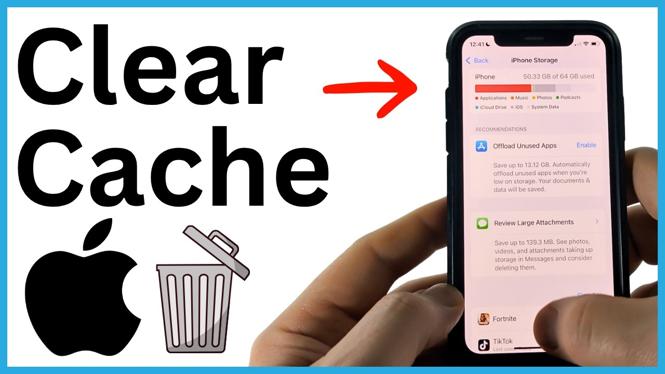
Low iPhone storage and slow apps often come from temporary website files, app data, message attachments, and other cached items. You can check where space is going in iPhone Storage, then clear the parts that matter without removing important content from your phone.
The methods below work with iOS 26 on newer and older iPhones. Start by checking your storage, then clear browser data, remove message attachments you no longer need, offload large apps, and restart the phone.
Video Tutorial
Check what is using storage first
Before deleting anything, look at the storage breakdown. This shows which apps and categories take up the most room, so you can focus on the biggest items instead of clearing small amounts of data.
- Open Settings.
- Select General.
- Tap iPhone Storage.
- Wait for the list to load.
Scroll to the bottom of this screen and select System Data to see the space used by caches, logs, and other temporary data. You can also tap an individual app in the list. Its Documents & Data amount includes data associated with that app, including cached files.
You cannot directly select and erase all System Data from this screen. Instead, use the cleanup methods below to reduce the temporary files contributing to it.
Clear Safari website data
Safari stores website data so pages can load faster on later visits. If Safari has been used heavily, this data can take up a noticeable amount of storage. Removing it clears the locally stored website data, and sites may need to download data again the next time you visit.
- Return to the main Settings screen.
- Find and select Safari.
- Scroll down and tap Advanced.
- Select Website Data.
- Check the size shown at the top of the list.
- Tap Remove All Website Data to clear the full list.
If you only want to clear data from certain sites, tap Edit. Tap the delete icon next to a website, then confirm the deletion. This is useful when one site is using a lot of stored data and you want to leave the rest alone.
Clear the Chrome cache
If Chrome is your main browser, clearing Safari data will not clear Chrome’s cached images and files. Do this separately in the Chrome app.
- Open Chrome.
- Tap the three dots in the bottom-right corner.
- Select History.
- Tap Delete Browsing Data.
- Set the time range to All Time if you want to clear the complete cache.
- Make sure Cached Images and Files is selected.
- Tap Done, then select Delete Data.
You can select other browsing data in this area if you choose, but Cached Images and Files is the setting to use when your goal is specifically to remove Chrome’s cache.
Delete large attachments in Messages
Photos, videos, GIFs, and other attachments in Messages can take up a lot of room. They are not browser cache, but removing attachments you no longer need is one of the quickest ways to reclaim storage shown in the same area.
- Open Settings and go to General.
- Select iPhone Storage.
- Tap Review Large Attachments.
- Look through the items, which are sorted from largest to smallest.
- Tap Edit.
- Select the attachments you want to remove.
- Tap the trash can icon to delete them from your iPhone.
Review the list carefully before using the trash can. Start with large videos and images you recognize and no longer want saved in Messages.
Offload and reinstall large apps
Apps can build up a large amount of cached data over time. You can refresh an app through the iPhone Storage screen by offloading it and then reinstalling it. This removes the app from the phone, then downloads it again, which can reduce the storage it uses.
- In Settings, open General and then iPhone Storage.
- Tap an app that has a large Documents & Data amount.
- Select Offload App.
- Confirm that you want to offload the app.
- Wait until the button changes to Reinstall App.
- Tap Reinstall App and allow the download to finish.
Check the app’s size again after it reinstalls. Its storage use may be lower than before, although it can increase again as you continue using the app and it creates new temporary files.
Restart your iPhone
A restart clears some temporary data that is only needed while the phone is running. It is a useful final step after clearing browser data and reducing app storage.
- Press and hold the Volume Up button and the Power button together.
- Turn off the iPhone using the power-off control.
- To use Control Center instead, swipe down from the top-right corner and hold the Power button to reach the turn-off option.
- After the iPhone is off, press and hold the Power button.
- Release it when the Apple logo appears.
Once the iPhone restarts, return to Settings, General, and iPhone Storage if you want to check how much space you recovered.
More iPhone Tips & Tutorials:
 Subscribe Now! 🙂

Discover more from Gauging Gadgets
Subscribe to get the latest posts sent to your email.