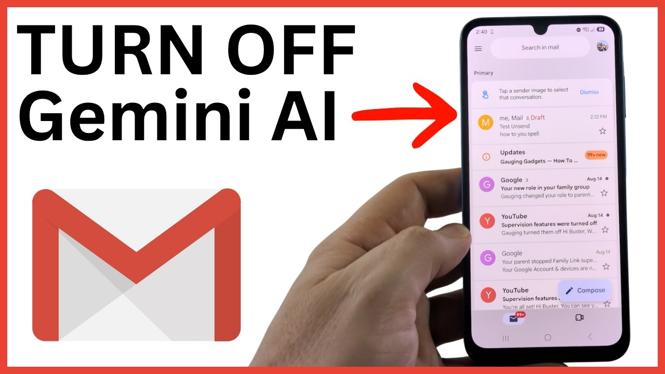
You can turn off Gemini-related smart features in the Gmail app from your account settings. The controls are available on iPhone, Android phones, and Samsung Galaxy devices, but switching them off can also remove useful Gmail tools such as writing assistance, email filtering, and Calendar event detection.
Before you change anything, decide what you want to stop. You can disable the main Gmail smart features, then separately stop Gmail information from being used across other Google products. If you miss a feature later, return to the same settings and turn it back on.
Video Tutorial
Turn off Gemini smart features in Gmail
Start in the Gmail mobile app while signed in to the Google account you want to change. These settings apply to the email account you select, so repeat the process if you use more than one account and want the same setup everywhere.
- Open the Gmail app on your iPhone, Android phone, or Samsung Galaxy device.
- Select the three lines in the top-left corner to open the Gmail menu.
- Scroll to the bottom of the menu and select Settings.
- Select the email account you want to update.
- Scroll down to the smart feature settings.
- Turn off Smart features.
- Find Google Workspace smart features and select it.
- Turn off both toggles in this section.
After disabling these settings, Gmail will no longer use the smart feature options covered by these controls for that account. You can leave the app once the toggles are off. There is no separate save button shown in this process.
What changes when you disable these settings
Turning off Gmail smart features has tradeoffs. The smart tools are connected to more than just Gemini assistance, so you may lose options you still use in your inbox.
For example, disabling the main Smart features setting can affect spell check, grammar check, and smart filtering for emails. It can also affect Gmail information that helps show events from your email in Google Calendar.
The settings under Google Workspace smart features control how more of your Gmail information can be used across other Google products. If you want tighter limits on use across Google products, turn off both toggles in that section.
If you want to keep useful inbox tools, consider leaving the first smart features setting on and only disabling the two Google Workspace smart feature toggles. That gives you a middle option instead of turning off every related setting at once.
Choose the setup that fits your inbox
There is not a separate Gemini-only switch shown in the Gmail app steps here. The available controls are the smart feature settings, and they affect several Gmail features together.
Use this approach if you want the most restrictive setup:
- Turn off Smart features.
- Turn off both toggles in Google Workspace smart features.
Use this approach if you want to keep more Gmail convenience features while limiting wider use:
- Leave Smart features enabled.
- Turn off both toggles in Google Workspace smart features.
Try the setting that makes sense for you, then use Gmail normally for a few days. Pay attention to email suggestions, writing help, filtering, and Calendar events. If an option you rely on disappears, you can reverse the change.
Turn the features back on later
You are not locked into this choice. To restore the features, open the Gmail menu, go to Settings, select your email account, and return to the same smart feature areas. Turn Smart features back on, or reopen Google Workspace smart features and enable the toggles you want to use.
This is useful if you turn everything off first and later decide you want spell checking, grammar support, smart email filtering, or Gmail events in Calendar again. You can adjust each available area based on how much assistance and cross-product use you want for your Gmail account.
More Gmail Tips & Tutorials:
 Subscribe Now! 🙂

Discover more from Gauging Gadgets
Subscribe to get the latest posts sent to your email.