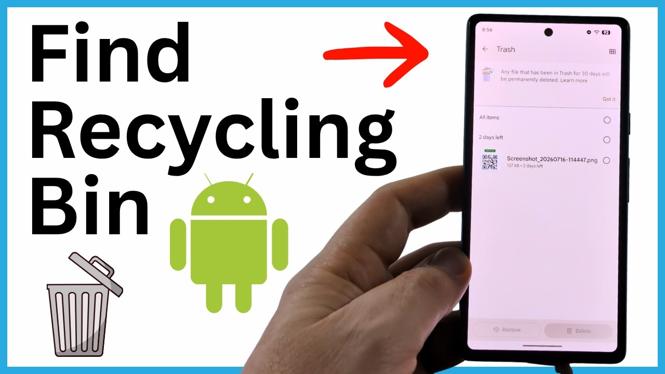
The Android recycle bin is called Trash in the Files app. It stores files, including pictures, that you deleted during the last 30 days. You can open Trash to check for something you removed by mistake, restore it, or permanently delete it.
This is useful when a file seems to be gone but you have not emptied its deleted-items area. Start in the Files app rather than searching through every folder on your phone.
Video Tutorial
Open the Trash folder in Files
You can find the Files app from your Android app list. Swipe up on your phone to open the app drawer, then look under the apps beginning with F for Files. The Trash option is inside the menu in that app.
- Swipe up on your Android phone to open the app drawer.
- Find and open the Files app.
- Select the three lines in the upper-left corner of the screen.
- Select Trash.
You should now see the items that were deleted within the last 30 days. This can include files and pictures. Scroll through the list carefully if you are looking for one specific item.
What you can do with deleted files
The Trash folder gives you two choices for deleted items. You can put an item back by restoring it, or you can remove it permanently. Restoring is the option to use when you deleted something accidentally and still need it.
Before permanently deleting anything, check the file or picture name and make sure it is not something you want to keep. A permanent deletion is different from leaving an item in Trash for now. If you are unsure, restore the item instead so it is available to you again.
Restore a file or picture from Trash
When you find the deleted item you want back, select it from the Trash list. Then use the restore option shown in the app.
- Open Files and go to the three-line menu.
- Select Trash.
- Find the file or picture you want to recover.
- Select the item.
- Select Restore.
The item will be undeleted. This is the quickest place to check when you recently deleted a document, download, image, or another file and need to recover it.
Permanently delete items from Trash
Trash can also help when you want to clear out files you no longer need. Select an item in the Trash list, then choose the option to permanently delete it. Only do this after checking that the item is not needed.
- Open Files.
- Select the three lines in the upper-left corner.
- Select Trash.
- Select the deleted file or picture you want to remove.
- Choose the permanent delete option.
This removes the selected item instead of restoring it. If your goal is to manage deleted files, review the Trash list one item at a time so you do not permanently remove the wrong file.
Remember the 30-day window
The Files app Trash folder shows files and pictures deleted in the last 30 days. If you cannot find an item there, it may not be in this list anymore. For recently deleted items, checking Trash as soon as possible gives you the best chance of seeing the file and choosing Restore.
When you need to find the recycle bin on Android again, remember the path: open Files, select the three lines in the top-left corner, and choose Trash. From there, you can review deleted items, restore the ones you still need, or permanently delete the rest.
More Android Tips & Tutorials:
 Subscribe Now! 🙂

Discover more from Gauging Gadgets
Subscribe to get the latest posts sent to your email.