Cancel Game Pass from your Xbox settings
You can cancel Xbox Game Pass or turn off auto-renewal directly from your Xbox console. You do not need to use a phone or computer. The key setting is in the Subscriptions area of your Xbox account.
After you turn off recurring billing, your membership does not necessarily end immediately. Your Xbox will show the expiration date for the subscription. You can keep using the Game Pass benefits until that displayed date, but Microsoft will not continue billing you for another membership period.
These steps apply when you want to manage an active Xbox Game Pass membership, including Game Pass, Game Pass Ultimate, or Game Pass Core, from an Xbox Series X, Xbox Series S, Xbox One, or another Xbox console with the same settings layout.
Video Tutorial
How to cancel Xbox Game Pass on Xbox
Start by turning on your Xbox and signing in to the account that has the Game Pass subscription. Your console also needs an internet connection so it can load your current subscriptions and update the recurring billing setting.
- Press the Xbox button on your controller. This is the button that lights up and opens the Xbox menu.
- Press the right bumper to move across to Profile & system.
- Scroll down and select Settings.
- In the menu on the left, select Account.
- Move to the right and select Subscriptions.
- Unlock your Xbox if you are prompted to do so. Then wait a moment while your subscriptions load.
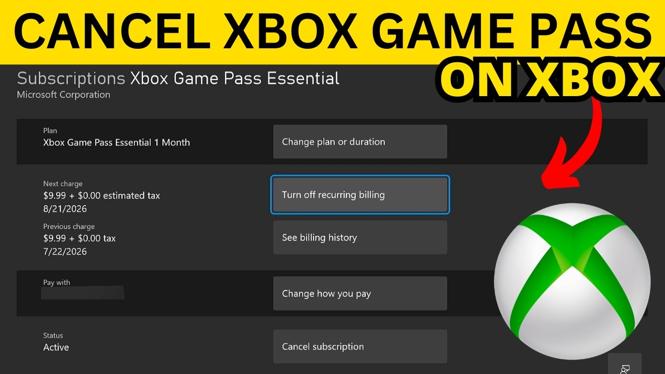
- Under the Active section, find and select Xbox Game Pass.
- Select Cancel subscription. You may also see an option to turn off recurring billing.
- Choose Turn off billing to confirm the change.
- Wait for the confirmation screen. When it says recurring billing has been successfully turned off, check the expiration date shown for your membership.
What turning off billing means
Turning off billing stops the membership from renewing automatically. It is the confirmation you need if your goal is to prevent another Game Pass charge after your current paid period ends.
Check the expiration date on the confirmation screen before leaving the page. That date tells you when the membership will expire. Until then, you can continue using the benefits included with the Game Pass plan you had active when you made the change.
If you selected the wrong subscription or have more than one membership listed, return to Account, then Subscriptions, and review the entries in the Active section. Make sure you are managing the Xbox Game Pass plan you intended to stop.
If you cannot see Xbox Game Pass
First, confirm that you signed in with the Xbox account that owns the subscription. A different profile on the same console may not show the Game Pass membership you want to cancel.
Also give the Subscriptions screen a moment to load after opening it. The console needs to retrieve the active memberships tied to your account. If your Xbox asks you to unlock it, complete that step before checking the list.
Only subscriptions shown under Active are the ones currently managed from this screen. Once you open Xbox Game Pass, use either the recurring billing option or Cancel subscription, then select Turn off billing to finish.
Confirm the cancellation before you exit
Do not rely only on returning to the Xbox home screen. Stay on the subscription page until the console confirms that recurring billing was turned off successfully. The expiration date shown there is the important final detail.
That confirmation means your current Game Pass membership is set to expire on the provided date instead of renewing automatically. You can revisit Settings, Account, and Subscriptions later if you need to review the status again.
More Xbox Series X Tips & Tutorials:
 Subscribe Now! 🙂

Discover more from Gauging Gadgets
Subscribe to get the latest posts sent to your email.