How to Add App Back to Home Screen on iPhone
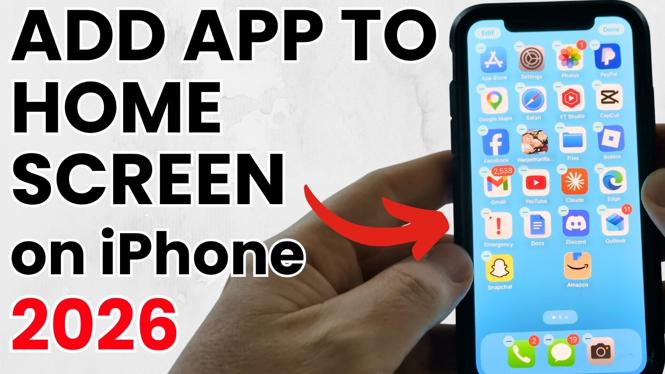
Have you accidentally removed an app from your home screen on your iPhone? You’re not alone. Many users find themselves in a situation where their favorite apps have disappeared, leaving them frustrated. Whether you are using an iPhone 17, iPhone 16, or older models running iOS 26, restoring missing apps is simpler than you might think. This guide will walk you through the steps to get your apps back on your home screen without any technical expertise.
Video Tutorial
Why You Might Be Looking for This Tutorial
There are several reasons you might want to add an app back to your home screen on your iPhone. First, it’s possible that you accidentally removed the app while rearranging your apps. Second, an app might have been hidden due to a change in your home screen settings or the use of App Library in newer iOS versions. Lastly, you might be unfamiliar with the recent updates on iOS and need guidance to navigate through the Home Screen management options. Whatever the reason, this tutorial will provide you with clear, step-by-step instructions to bring your apps back to where they belong.
Steps to Add App Back to Home Screen on iPhone
- Unlock Your iPhone: Start by unlocking your iPhone and navigating to the Home Screen.
- Access the App Library: Swipe left until you reach the App Library, where all your apps are organized.
- Locate the App: Use the search bar or browse through the categories to find the app you want to add back to your home screen.
- Restore the App: Once you locate the app, press and hold the app icon until a menu appears. Select “Add to Home Screen.”
- Check Your Home Screen: Return to your home screen to ensure the app is now visible. You can rearrange it as desired.
Final Thoughts
Adding an app back to your home screen on your iPhone is a quick and easy process that anyone can accomplish. With the steps outlined in this tutorial, you can efficiently restore your favorite applications without any hassle. If you find yourself frequently losing track of your apps, consider organizing them better or utilizing folders to enhance your experience further.
More iPhone Tutorials:
 Subscribe Now! 🙂

Discover more from Gauging Gadgets
Subscribe to get the latest posts sent to your email.