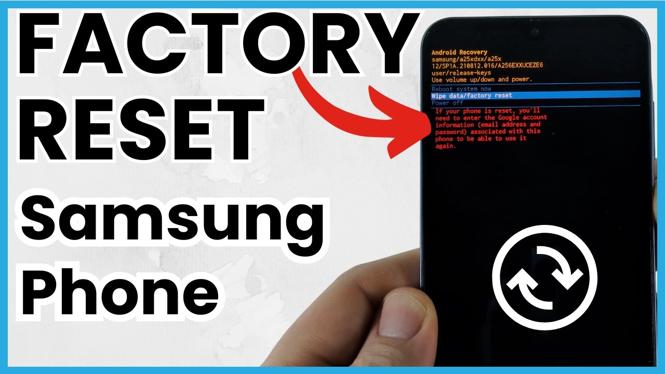
A factory reset erases your Samsung phone and returns it to its original setup state. You can do this from Settings when you know the phone PIN, or use Android Recovery when you cannot unlock the phone because the passcode is forgotten.
Video Tutorial
Before you reset your Samsung phone
A factory reset is not a quick restart. It removes the data shown on the reset confirmation screen, and you will need to set up the phone again afterward as if it were new. If you can still access the phone, save anything you want to keep before starting.
Use the Settings method when the phone is working and you know its PIN. Use the recovery method only when you cannot unlock the device. The recovery method requires a USB cable connected from the Samsung phone to a Windows computer or Mac.
Method 1: Factory reset from Settings
This is the simplest way to factory reset a Samsung phone when you can unlock it normally. Samsung lists several reset options, so make sure you select the factory reset option rather than one of the smaller reset choices.
- Swipe up on your Samsung phone to open the app list.
- Open the Settings app.
- Scroll down and select General management.
- Scroll down again and select Reset.
- Review the available reset options, then select Factory data reset at the bottom.
- Read the information explaining what will be deleted from the phone.
- Scroll all the way to the bottom of the page and select Reset.
- Enter your Samsung phone PIN when prompted.
- Confirm the reset again if your phone asks for another confirmation.
The phone will begin the factory reset process. Leave it alone while it resets. Once it finishes, you will go through the initial setup screens again, just as you would on a new Samsung phone.
Method 2: Factory reset without the passcode
If you forgot the passcode and cannot unlock your Samsung phone, you can reset it through the Android Recovery screen. This process uses the physical buttons instead of the Settings app.
First, connect a USB cable to your Samsung phone. Connect the other end of that cable to a Windows computer or a Mac. The phone needs to be connected to a computer to access recovery mode in this method.
- With the USB cable connected to the phone and computer, press and hold the Volume Down button and the Power button together.
- Keep holding both buttons until the phone screen turns off.
- As soon as the screen turns off, switch to holding the Volume Up button and the Power button.
- Continue holding the buttons until the Android Recovery screen appears.
- Use the volume buttons to move through the recovery menu and highlight Wipe data/factory reset.
- Press the Power button to select it.
- Move down to Factory data reset.
- Press the Power button again to confirm.
The phone may ask you to confirm one more time. After confirmation, it will erase the phone and perform the factory reset without requiring the forgotten passcode.
Which factory reset method should you use?
Use Settings when you have access to the phone and know the PIN. It is the more straightforward option because you can review the reset details on the screen before confirming.
Use Android Recovery when the phone is locked and you do not know the passcode. Remember to connect the Samsung phone to a Windows computer or Mac with a USB cable before trying the button combination. Then hold Volume Down and Power until the screen goes off, and immediately switch to Volume Up and Power.
After the reset finishes
Both methods leave the phone ready for a fresh setup. You will need to work through the setup process again after the reset completes. If you were able to save your important information before resetting, you can use it while setting the phone up again.
If you only need to fix a smaller issue, check the other choices listed under Settings, General management, and Reset before choosing Factory data reset. That helps you avoid erasing the entire phone when a different reset option may be enough.
More Samsung Phone Tips & Tutorials:
 Subscribe Now! 🙂

Discover more from Gauging Gadgets
Subscribe to get the latest posts sent to your email.