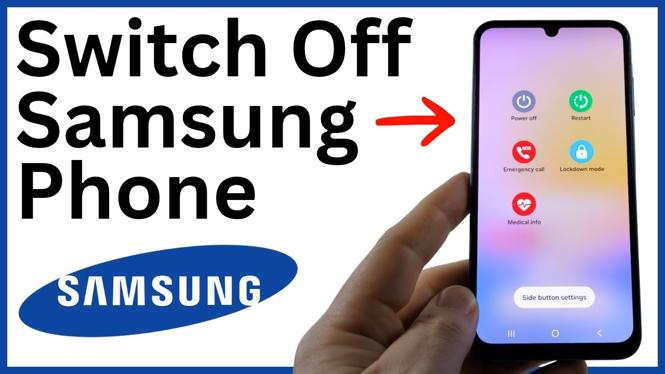
You can switch off a Samsung phone from the power menu, Quick Settings, a voice assistant, or an Accessibility shortcut. That gives you a backup option if the usual button action opens Gemini or Google Assistant instead of the shutdown controls.
Use the power button
The quickest method is to hold the phone’s power button until the power menu appears. Do not use the volume rocker for this.
- Press and hold the power button.
- Wait for the power menu to appear.
- Tap Power off.
- Confirm the shutdown if your phone asks you to.
Your Samsung phone will begin powering down. This is the method to use first when the button opens the normal power menu.
Video Tutorial
Ask your voice assistant to open the power menu
On some Samsung phones, holding the power button opens an assistant such as Gemini or Google Assistant. You can still use that screen to switch off the phone.
- Press and hold the power button to open your assistant.
- Say, Turn off my phone.
- Wait for the assistant to open the power menu.
- Tap Power off.
- Confirm the shutdown when prompted.
This option is useful when the power button does not directly show the power menu. The assistant handles the request by bringing up the same shutdown controls, so you can turn the phone off normally.
Switch off your Samsung phone from Quick Settings
You can also reach the power menu from the Quick Settings panel. This is handy when you would rather use the screen than press and hold a button.
- Swipe down from the top-right area of the screen, near the battery indicator.
- Look for the power icon at the top of the Quick Settings panel.
- Tap the power icon.
- Select Power off.
- Confirm that you want to turn off the phone.
Start the swipe from the top-right side. Swiping down from the top of the display can open notifications instead, which is not the panel you need for this method.
Add an Accessibility button for the power menu
If the other methods are not working for you, Samsung’s Accessibility settings can add a floating button to the screen. From that button, you can open the power-off menu. Once enabled, the red button stays available as you move around the phone.
- Swipe up to open your apps.
- Open Settings.
- Scroll down and select Accessibility.
- Select Accessibility shortcuts.
- Select Accessibility button.
- Choose Select actions.
- Scroll down and select Assistant menu.
You should now see a red Accessibility button on the screen. Use it to reach the shutdown controls.
- Tap the red Accessibility button.
- Tap the icon with the four small squares.
- Use the arrow on the right until you see Power off menu.
- Select Power off.
- Confirm the shutdown.
This method takes a few minutes to set up, but it gives you a screen-based way to switch off your Samsung phone later. It can be particularly helpful when using the physical button is inconvenient.
Choose the method that fits the problem
Try the power button first because it is usually the fastest option. If it opens Gemini or Google Assistant, ask the assistant to turn off the phone and then select Power off. If you prefer not to hold the button, open Quick Settings from the top-right of the screen and use the power icon.
The Accessibility button is the extra fallback. After you enable Assistant menu, you can access the Power off menu from the floating red button whenever you need it.
More Samsung Phone Tips & Tutorials:
 Subscribe Now! 🙂


Discover more from Gauging Gadgets
Subscribe to get the latest posts sent to your email.