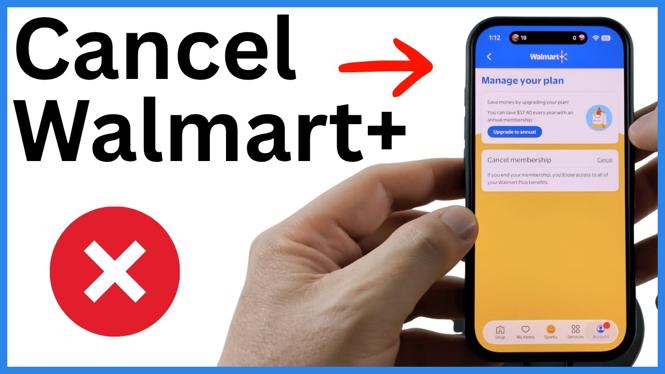
Canceling Walmart+ in the Walmart app turns off future renewal for your paid membership or free trial. You can do it from the membership management screen, and the final confirmation screen lets you verify that the cancellation went through.
These steps use the Walmart app on iPhone, Android, and Samsung phones. Make sure you are signed in to the Walmart account that has the Walmart+ plan before you start.
Video Tutorial
Cancel Walmart+ in the Walmart app
- Open the Walmart app on your phone.
- Select Account in the bottom menu.
- In the menu near the top of the Account page, select Walmart+. You may need to scroll through the menu to see it.
- At the top of the Walmart+ page, select Manage membership.
- Select Manage next to your current membership.
- Select Cancel next to Cancel membership.
- Review the information on the next screen. Scroll down, then select the option to confirm the cancellation.
- Choose a reason for canceling when Walmart asks for feedback.
- Select Submit feedback.
After you complete the process, look for Restart Walmart+. Seeing that option means your Walmart+ membership has been canceled.
What canceling your membership changes
Canceling Walmart+ stops the membership from renewing automatically. This is the step to take if you started a Walmart+ free trial and do not want it to become a paid plan, or if you no longer want your paid membership to continue.
Do not stop at the first Cancel button. Walmart shows additional information and asks you to confirm the cancellation. Continue through the feedback screen, then check for Restart Walmart+ before you leave the app. That final status is the useful confirmation that auto-renewal is no longer active.
How to check that Walmart+ is canceled
Return to the Walmart+ area of your account after submitting the cancellation. If the app shows Restart Walmart+, your membership is no longer set to renew. You can use that screen as your confirmation instead of assuming the cancellation was completed after selecting the first option.
If you do not see the cancellation confirmation, go back through the membership screens and check that you completed every prompt. You need to select a cancellation reason and submit the feedback to finish the process shown in the app.
Canceling a Walmart+ free trial
The same path applies to a Walmart+ free trial. Open Account, select Walmart+, then go to Manage membership. From there, choose Manage, select Cancel by Cancel membership, and complete the confirmation and feedback steps.
Cancel the trial before it renews if you do not want future Walmart+ charges. Once the app displays Restart Walmart+, the free trial or membership has been canceled through the process shown here.
If you want Walmart+ again later
You do not need to repeat the cancellation process if you decide to keep the plan off. The Restart Walmart+ option indicates that the membership is canceled. It also gives you a clear place to return if you later decide to start Walmart+ again.
For now, the important part is checking that the app displays the restart option after you submit your feedback. That confirms you have canceled Walmart+ and turned off the renewal for the membership shown in your Walmart account.
More Cancel Subscription & Free Trial:
 Subscribe Now! 🙂

Discover more from Gauging Gadgets
Subscribe to get the latest posts sent to your email.