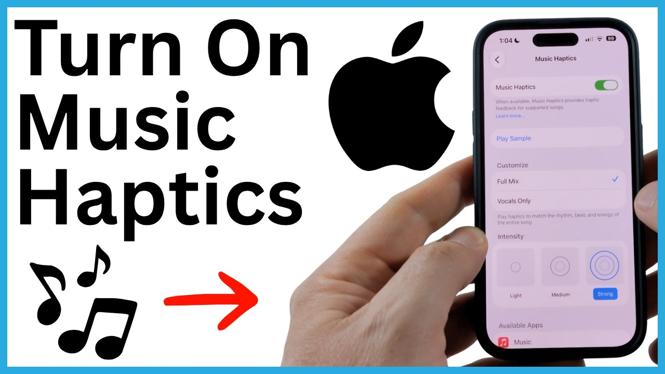
Music Haptics makes your iPhone vibrate in time with the music playing on it. It uses the Taptic Engine to create taps, textures, and vibrations that follow the rhythm and beat. Once enabled, it works while you listen in supported apps, including Apple Music.
This feature can make songs easier to experience if you are deaf or hard of hearing. It can also add a physical rhythm cue while you listen. You turn it on from the Accessibility settings, then choose the available options that suit you.
Video Tutorial
Turn on Music Haptics in iPhone Settings
You only need to enable Music Haptics once. After that, your iPhone can play synced haptics whenever you use a supported music app.
- Open the Settings app on your iPhone.
- Scroll down and select Accessibility.
- Scroll to the Hearing section.
- Select Music Haptics.
- Turn on the Music Haptics toggle.
After you switch it on, your iPhone is ready to produce haptics that match compatible music. The vibrations are designed to follow parts of the audio, so you can feel elements of a song through the phone.
Adjust Music Haptics Options
The Music Haptics screen includes controls to change how the feature feels. These settings let you tailor the haptic response instead of using the default experience for every song.
Use the Vocals Only option if you want the haptics to focus on vocals. This can be useful when you want to follow the vocal part of a track rather than feel the full range of musical elements.
You can also adjust Intensity. Try a lower setting first if the vibrations feel too strong in your hand. Raise the intensity if you want a more noticeable response. The best setting depends on how you hold your iPhone and how pronounced you want the taps and vibrations to feel.
The same page also shows which apps Music Haptics works in. Check this list before testing a music app, since the feature only activates in supported apps. Apple Music is one supported option, along with other apps shown on your iPhone.
Play the Music Haptics Sample
If you want to test the feature before playing your own music, use the sample available on the Music Haptics settings screen. The sample plays music while your iPhone produces the matching haptic effects.
- Stay on the Music Haptics screen after enabling the feature.
- Choose the option to play the sample.
- Hold your iPhone in your hand while the sample plays.
- Feel for the taps, textures, and vibrations that sync with the audio.
- Adjust Vocals Only or Intensity, then play the sample again if you want to compare the result.
Testing the sample is a simple way to confirm that Music Haptics is enabled and to get a sense of how the effect feels. You may notice different vibration patterns as the music changes.
Use Music Haptics While Listening
Once Music Haptics is turned on, open a supported app and start playing music. Your iPhone will vibrate with the music haptics while audio is playing. You do not need to return to Accessibility settings each time you want to use it.
If you do not feel haptics while listening, return to Settings, Accessibility, and Music Haptics to make sure the main toggle is still on. Then check the list of supported apps on that screen and test playback in one of those apps.
Keep the feature enabled if you enjoy feeling the rhythm through your iPhone. If you decide you do not want vibrations during music playback, return to the same Music Haptics screen and turn off the toggle.
More iPhone Tutorials:
 Subscribe Now! 🙂
Discover more from Gauging Gadgets
Subscribe to get the latest posts sent to your email.