Start by closing the Camera app completely
If your Android camera will not open, shows a black screen, or stops working in an app, start with the Camera app itself. A stuck camera process can prevent the camera from opening properly in the main Camera app and in other apps that need to use it.
The steps below use the Android Settings menus shown in the video. Try the Camera app again after each fix. This helps you identify what fixed the problem without changing more settings than you need to.
Video Tutorial
Force stop the Camera app
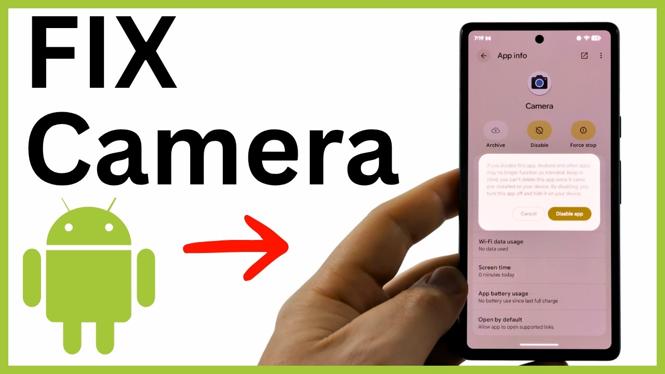
Force stopping closes the Camera app fully. When you open it again, Android starts a fresh instance of the app. This is a useful first step when the app is frozen, crashes, or refuses to load the camera view.
- Open Settings on your Android phone.
- Select Apps.
- Choose See all apps.
- Scroll through the app list to the C section and select Camera.
- Tap Force stop.
- Select OK to confirm.
Now open the Camera app and check whether you can see the camera preview, take a photo, or record a video. Also test the app where you originally noticed the issue if the camera was failing in a specific app.
Disable and re-enable Camera if needed
From the same Camera app page in Settings, you can also disable the Camera app and then enable it again. This can help if the Camera app is not responding correctly. Disabling and re-enabling it may clear some cached app information and give the app another chance to start normally.
- Return to Settings > Apps > See all apps > Camera.
- Select Disable.
- Enable the Camera app again.
- Open the Camera app and test it.
If the camera still does not work, do not assume the Camera app is the only cause. Android has a privacy control that can block camera use across apps and services.
Make sure Camera access is turned on
Your phone can turn off camera access at the system level. When this setting is disabled, apps and services cannot use the camera. This can make the Camera app appear broken or stop another app from opening the camera.
- Go back to the main Settings screen.
- Scroll down and select Security & privacy.
- Scroll down and open Privacy controls.
- Check that Camera access is enabled.
Once Camera access is enabled, return to the Camera app or the app where the problem occurred. Try opening the camera again. If the preview appears and you can take a photo, the privacy control was preventing camera access.
Restart your Android phone
A quick restart is the next fix to try if force stopping Camera and checking Camera access did not solve the issue. Restarting closes running processes and starts Android again, which can resolve temporary problems that keep the camera from opening.
You can restart the phone in either of the ways shown in the video:
- Press and hold the phone’s power button.
- Select Restart.
Alternatively, swipe down from the top of the screen, then swipe down again to open the full Quick Settings panel. Select the power button, then choose Restart.
Wait for your phone to finish restarting. Then open the Camera app first and check that it opens normally. After that, test any other app that needs your camera. For example, if the issue only appeared when you tried to use the camera in one app, confirm that the camera opens there too.
Use this order when the camera stops working again
If your camera not working on Android phone issue returns, repeat the same order. First force stop the Camera app. Next, check that Camera access is enabled in Security & privacy and Privacy controls. Finally, restart the phone if the issue continues.
This order starts with the smallest change and works up to restarting the device. It also covers problems where the Camera app will not open, where the screen stays black, and where another app cannot access the camera.
More Android Tips & Tutorials:
 Subscribe Now! 🙂

Discover more from Gauging Gadgets
Subscribe to get the latest posts sent to your email.