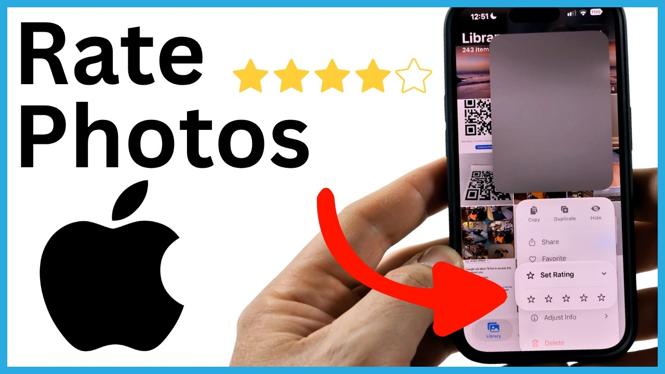
iOS 27 adds a five-star rating system to the iPhone Photos app. You can use it to mark your strongest pictures, separate keepers from shots you do not need right away, and filter your library by rating later.
The rating controls are off by default, so you need to enable them before the Set Rating option appears. Once enabled, you can rate any photo from one to five stars directly from your library.
Video Tutorial
Turn on photo rating controls
Start in the Photos app. The setting is attached to your Photos profile, not to an individual album, so you only need to turn it on once.
- Open the Photos app on your iPhone.
- Select Collections in the bottom menu.
- Select your profile icon in the top-right corner.
- Scroll to the bottom of the available options.
- Turn on Show Rating Controls.
After you enable this setting, return to your photo library. You can now assign a star rating to photos using the long-press menu. If you do not see Set Rating when you long press a picture, check that Show Rating Controls is still enabled.
Rate a photo with one to five stars
You can rate photos based on any system that makes sense for your library. For example, use five stars for your best finished images, three stars for pictures you may want to edit or share, and one star for photos you want to review later.
- Go back to your photo library in the Photos app.
- Long press the photo you want to rate.
- Select Set Rating.
- Choose a rating from one to five stars.
The rating appears on the photo while you view your library, making it easier to spot images you have already reviewed. Repeat these steps for other photos as you sort through a trip, event, or recent camera roll.
You do not have to rate every image at once. A practical approach is to give five stars to photos you know you want to keep close, then return later to assign lower ratings to the rest. This keeps the first pass quick and gives you a useful group of top images immediately.
Filter your photos by star rating
Ratings become most useful when you filter the library. Instead of scrolling through every photo, you can show only pictures with a particular star rating. This is helpful when you need to find your best shots for sharing, editing, or printing.
- Open your photo library in the Photos app.
- Select the filter button at the top.
- Choose Rating.
- Select the rating you want to view, such as five stars.
You can also use the rating filter to show Unrated photos. This gives you a simple way to continue organizing your library without guessing which images you have already reviewed. Filter for unrated items, assign ratings, then switch back to five stars whenever you want to see your top pictures.
Use a simple rating system
Star ratings work best when each level has a clear purpose. You can keep the system simple:
- Five stars: Your best photos and images you want to find quickly.
- Three stars: Good photos that may need editing, sharing, or another review.
- One star: Images you want to keep track of but would not place among your favorites.
- Unrated: Photos you have not reviewed yet.
You can use all five rating levels if you prefer more detail, but you do not need to. The important part is using the same meaning for your ratings over time. That makes the Rating filter useful instead of creating another label you have to remember.
Keep your best photos easy to find
The iPhone photo rating feature gives you another way to organize a large library in iOS 27. Turn on Show Rating Controls, long press a photo, select Set Rating, and assign the number of stars it deserves. Then use the filter button and Rating option to pull up five-star images or find photos that still need a rating.
More iPhone Tutorials:
 Subscribe Now! 🙂


Discover more from Gauging Gadgets
Subscribe to get the latest posts sent to your email.