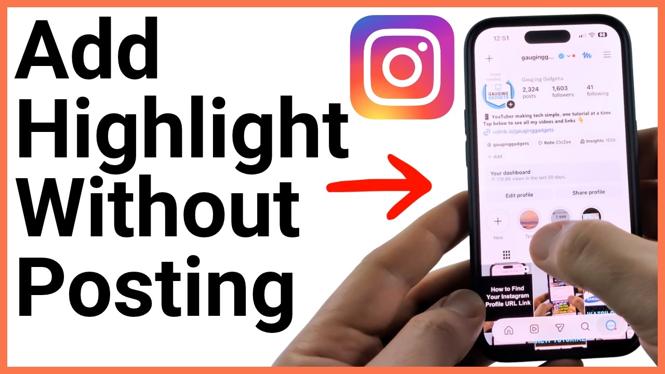
You cannot place a brand-new story in an Instagram Highlight without Instagram receiving it as a story first. The workaround is to share it to Your story, add it to a Highlight immediately, then archive it. Your followers may only have a few seconds to see it, and it will remain in the Highlight after it leaves your active story.
This is useful when you want to build or update Highlights without leaving a story visible for the usual 24 hours. The timing matters, so have the image, video, text, and Highlight name ready before you share it.
Video Tutorial
Share the story only to Instagram
Start in the Instagram app and open your profile. Select your profile icon to begin creating a story. You can use a photo or video, then add text, stickers, or anything else you want included in the Highlight.
Before sharing, check the destinations carefully. The goal is to make the story available on Instagram only for a short time. If Instagram also offers to share it to Facebook Story, do not leave that enabled.
- Create the story from your Instagram profile.
- Finish any edits, including text or stickers.
- Select the blue arrow in the bottom-right corner.
- Review the sharing options next to Your story.
- If Facebook Story is selected, select it and choose Don’t share this time.
- Confirm that Instagram is the only place where the story will be shared.
Do not share the story to Facebook, WhatsApp, or another connected destination if you want it removed right away while keeping the Instagram Highlight. This method relies on managing the Instagram story itself.
Use Your story, not Close Friends
Make sure the destination says Your story. Do not switch it to Close Friends unless you specifically want the Highlight limited to that audience.
A Highlight made from a Close Friends story can only be viewed by the people allowed to see that story. If you are creating a normal public-facing profile Highlight, sharing to Your story is the important setting.
Once the destination is correct, select Share. The story needs to publish successfully before you can add it to a Highlight. You do not need to wait for 24 hours. You only need to leave it up long enough for the upload to finish and for Instagram to show the Highlight option.
Add the story to a new or existing Highlight
Right after you share the story, Instagram gives you an Add to highlights option. Select it as soon as it appears.
- Select Add to highlights.
- Select an existing Highlight to add the story to it.
- Or, select the plus symbol to create a new Highlight.
- Choose the Highlight you want, then select Done.
For a new Highlight, take a moment to give it a clear name. This is easier than trying to remember later which Highlight contains the temporary story. If you are updating an existing one, verify that you selected the correct Highlight before tapping Done.
The story is now attached to the Highlight, but it may still be visible as an active story. Remove it next.
Archive the active story right away
Open the story you just posted. If it is still uploading, wait until the upload finishes. Then select More in the bottom-right corner and select Archive.
Archiving removes the story from your active Instagram story, so it no longer stays up for the full day. Because you already added it to the Highlight, it remains available from your profile through that Highlight.
- Open the newly shared story.
- Wait for it to finish uploading if needed.
- Select More in the bottom-right corner.
- Select Archive.
- Return to your profile and open the Highlight to confirm the story is there.
The story may have been live for only a few seconds. That is normal for this process. Check the Highlight after archiving to make sure the item appears before moving on.
Tips for keeping the temporary post less noticeable
Prepare the story before you begin. If you spend time editing after it is live, it stays visible longer than necessary. Create the image, video, or text first, then share it, add it to the Highlight, and archive it in one quick sequence.
Also check the sharing audience every time. The two settings that matter most are Your story and the other connected sharing destinations. Use Your story for a standard Highlight, and use Don’t share this time for Facebook Story when that option appears.
This process does not avoid publishing entirely. Instead, it lets you publish briefly, save the item to a Highlight, and archive the active story without waiting 24 hours.
More Instagram Tips & Tutorials:
 Subscribe Now! 🙂


Discover more from Gauging Gadgets
Subscribe to get the latest posts sent to your email.