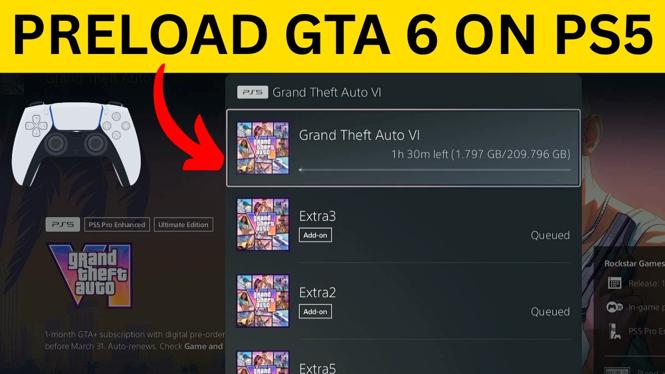
You need to preorder GTA 6 before you can preload it on a PS5. Once your purchase is complete, select Download All to start downloading the game and any included content. The video shows an install size of 209 GB, so clear enough console storage before you begin.
Preloading downloads the game ahead of release. You will see it on your PS5 home screen when the download is finished, but you cannot open it until the release countdown ends.
Video Tutorial
Preorder GTA 6 from the PlayStation Store
Start from the PS5 home screen and open the PlayStation Store. You can select GTA 6 if it is already displayed in the store, or use the search field at the top to find it.
- Open PlayStation Store on your PS5.
- Go to the search field at the top of the screen.
- Type GTA and run the search.
- Select GTA 6 from the results.
You will then need to choose the edition you want to buy. The video shows an Ultimate version for $100. It also shows how to switch to the Standard Edition, listed at $79.99 in the video.
To change editions, move to the right side of the GTA 6 store page, select the three dots, and choose Standard Edition. This takes you to the Standard Edition purchase option.
Purchase the edition you want
Preloading works with either edition shown in the video. Pick the version you want, then select its displayed price to continue with the preorder.
- Select the dollar amount for your chosen GTA 6 edition.
- Review the purchase details on the confirmation screen.
- Select Confirm Purchase.
- Wait for the payment to process and the thank-you screen to appear.
After the purchase is confirmed, do not leave the page yet. The next screen provides the option that starts the preload.
Start the GTA 6 preload
Select Download All after buying the game. This starts the GTA 6 download on your PS5. If you bought the Ultimate version, this option also downloads the extra game pieces included with that purchase.
- On the screen shown after your purchase, select Download All.
- Wait for the preload to begin.
- Select Continue if that option appears.
- Leave your PS5 connected while the download completes.
The video lists GTA 6 as 209 GB. Check your available PS5 storage before starting, especially if you keep several large games installed. If your console does not have enough free space, the download cannot complete until you make room.
Check that GTA 6 is ready on your PS5
Once the preload has completed, GTA 6 appears on your PS5 home screen. Select the game tile to view its status.
Before launch, the game shows that it will be playable when the displayed countdown reaches zero. This is normal. A completed preload means the game files are already on your console, while the countdown controls when the game can be opened.
After the release time passes, selecting the GTA 6 tile opens the game normally. You avoid waiting for the full game download on release day because the main download was completed beforehand.
If the preload does not start
First, confirm that your GTA 6 preorder was completed and that you selected Download All. Also make sure your PS5 has sufficient free storage for the 209 GB install shown in the video. If the game is still downloading, let it finish before relying on the home-screen tile as proof that it is ready.
If you see a countdown instead of a play option, the preload is likely complete and the game is waiting for its release time. Once that countdown ends, GTA 6 should be available to open from the PS5 home screen.
More PS5 Tips & Tutorials:
 Subscribe Now! 🙂


Discover more from Gauging Gadgets
Subscribe to get the latest posts sent to your email.