How to Find Hidden Apps on iPhone
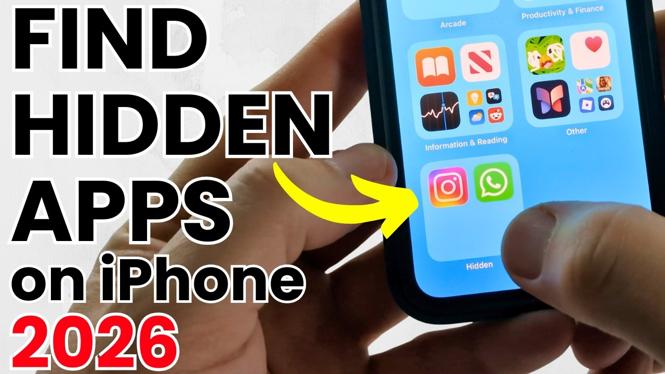
In today’s digital age, smartphones have become an integral part of our daily lives. With the multitude of apps available on the iPhone, it’s not uncommon for users to misplace or hide certain applications. If you’re struggling to locate an app that you’ve previously downloaded or think you’ve lost, you’re not alone. This comprehensive guide will help you uncover hidden apps on your iPhone, ensuring you can access all your favorite tools and games without hassle.
Video Tutorial
Why You Might Be Looking for This Tutorial
There are several reasons why you might find yourself searching for hidden apps on your iPhone. Perhaps you’ve customized your app layout extensively and can’t remember where you placed an app, or maybe you’ve accidentally hidden an app through your device’s settings. Additionally, with frequent updates to iOS, features and functionalities continue to evolve, making it challenging even for experienced users to stay on top of how to manage their apps. This tutorial will aid you in regaining control of your applications, providing step-by-step instructions to help you find any missing or hidden apps effortlessly.
Steps to Find Hidden Apps on iPhone
- Check the App Library: Swipe left on your home screen until you reach the App Library. Here, you can browse through all installed apps, including those you may have hidden from your home screen.
- Use the Search Function: Swipe down from the middle of your home screen to access the search bar. Type the name of the app you’re looking for, and it should appear if it’s installed on your device.
- Check for Restrictions: Go to Settings > Screen Time > Content & Privacy Restrictions. Make sure that the app you’re looking for isn’t restricted under allowed apps.
- Use the App Store: Open the App Store, tap on your account icon at the top right, and select Purchased. You may be able to find the app here if it is still on your device but not visible on your home screen.
- Reset Home Screen Layout: If all else fails, you can reset your home screen layout by going to Settings > General > Transfer or Reset iPhone > Reset > Reset Home Screen Layout. This will restore your apps to their original layout, bringing any hidden apps back to the home screen.
By following these steps, you should be able to locate any hidden apps on your iPhone quickly and easily, ensuring that you can access your favorite functionalities without frustration.
More iPhone Tutorials:
 Subscribe Now! 🙂

Discover more from Gauging Gadgets
Subscribe to get the latest posts sent to your email.