How to Remove Email Address on Facebook
Managing your online presence is essential in today’s digital age, and one crucial aspect of that is ensuring your social media accounts have the correct information. If you’ve recently changed your email, want to enhance your privacy, or simply no longer use a particular email address associated with your Facebook account, you may be wondering how to remove it. This tutorial will guide you step-by-step on how to remove, delete, or change the email address linked to your Facebook profile.
Video Tutorial
Why You Might Be Looking for This Tutorial
There are several reasons you might need to remove an email address from your Facebook account:
- Privacy Concerns: You may wish to limit the amount of personal information available publicly.
- Outdated Information: If you’ve changed your email address, it’s important to update it to receive notifications and maintain account security.
- Account Security: Removing an email that is no longer secure or accessible is vital for protecting your account.
- Managing Multiple Accounts: If you have more than one email tied to Facebook, you may want to streamline your contact information.
Steps to Remove Email Address on Facebook
Follow these simple steps to remove or change your email address on Facebook using your mobile device:
For iPhone and Android Devices:
- Open the Facebook App: Launch the Facebook app on your iPhone or Android device.
- Go to Settings: Tap on the three horizontal lines (menu icon) at the top right corner of your screen. Scroll down and select “Settings & Privacy,” then tap “Settings.”
- Navigate to Personal Information: Find and tap on “Personal Information” to access your account details.
- Click on Contact Information: Tap on “Contact Info” where you will see the list of email addresses linked to your account.
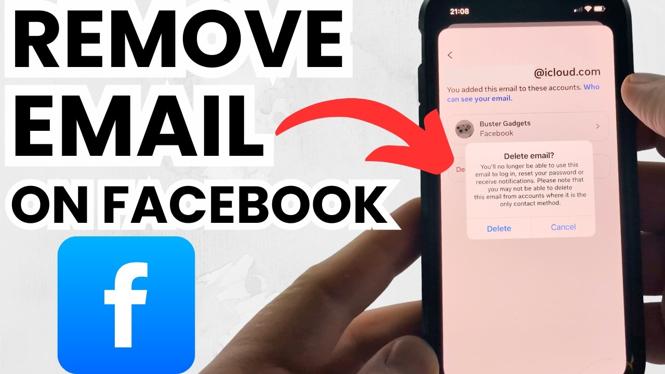
- Select the Email Address to Remove: Choose the email address you want to remove. If it’s your primary email, you’ll first need to add a new email to replace it.
- Remove Email Address: Tap on “Remove” and confirm your decision to delete the selected email address from your account.
- Save Changes: Ensure any changes made are saved before exiting the settings menu.
For Samsung Devices:
- Open Facebook App: Launch the Facebook app on your Samsung device.
- Access Settings: Tap on the menu icon and then “Settings & Privacy,” followed by “Settings.”
- Go to Personal Information: Click on “Personal Information” to proceed to your account details.
- Manage Email Addresses: Under “Contact Info,” select the email you want to remove.
- Confirm Removal: Tap “Remove” and confirm to successfully delete the email from your account.
Conclusion
Removing an email address from your Facebook account is a straightforward process that can help enhance your privacy and keep your account secure. By following the above steps, you can easily manage your contact information and ensure it remains up-to-date. If you run into any issues, consider consulting Facebook’s help center for additional support.
More Facebook Tips & Tutorials:
 Subscribe Now! 🙂

Discover more from Gauging Gadgets
Subscribe to get the latest posts sent to your email.