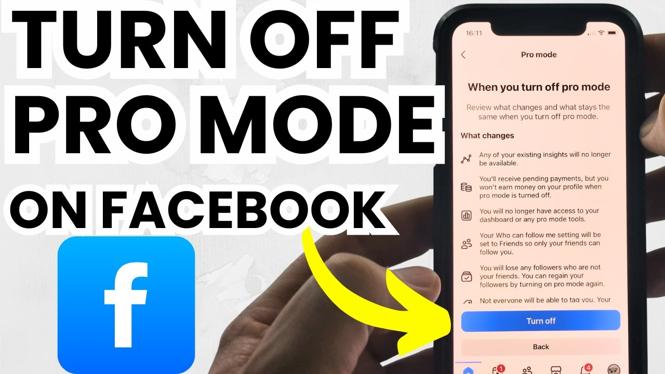
How to Turn OFF Pro Mode on Facebook
If you are finding yourself overwhelmed by the features of Facebook Pro Mode, you are not alone. Many users may wish to switch back to a standard Facebook profile experience for a variety of reasons. Whether it’s due to a cluttered interface, difficulties with managing professional features, or simply a desire to revert to a more familiar layout, knowing how to disable Pro Mode can greatly enhance your social media experience. In this tutorial, we will guide you through the easy steps to turn off Pro Mode on your Facebook account, regardless of whether you are using an iPhone, Android device, or your desktop.
Video Tutorial
Why You Might Be Looking for This Tutorial
Pro Mode on Facebook can introduce a range of features that are suitable for professionals and creators, but they are not necessarily for everyone. Here are a few reasons you might want to turn off Pro Mode:
- Simplifying Your Experience: If you prefer a straightforward social media experience without professional growth tools and analytics, switching back can help.
- Avoiding Complexity: Facebook Pro Mode can add layers of complexity that some users find unnecessary. Disabling it will bring back the simplicity of a personal profile.
- Privacy Concerns: Some users may feel more comfortable with the privacy settings of a standard profile compared to those of a professional account.
- Content Focus: If your goal is to connect with friends and family rather than showcase a professional presence, reverting back can reconnect you to those intentions.
Steps to Turn OFF Pro Mode on Facebook
Follow these simple steps to disable Pro Mode on your Facebook account:
On Mobile Devices (iPhone/Android)
- Open the Facebook app on your device.
- Tap on the three horizontal lines (menu) in the bottom right corner (iPhone) or top right corner (Android).
- Scroll down and find ‘Settings & Privacy’, then tap on ‘Settings’.
- Under the “Account” section, look for ‘Professional Mode’ and tap on it.
- Toggle the switch to turn off Pro Mode.
- Confirm your choice when prompted.
On Desktop
- Log in to your Facebook account using a web browser.
- Click on the down arrow in the top right corner, then select ‘Settings & Privacy’ followed by ‘Settings’.
- On the left menu, click on ‘Professional Mode’.
- Uncheck the box that says ‘Turn on Professional Mode’.
- Click ‘Save Changes’ to finalize your decision.
By following these steps, you will no longer have Pro Mode enabled on your Facebook account. Enjoy your streamlined Facebook experience once again!
More Facebook Tips & Tutorials:
 Subscribe Now! 🙂

Discover more from Gauging Gadgets
Subscribe to get the latest posts sent to your email.