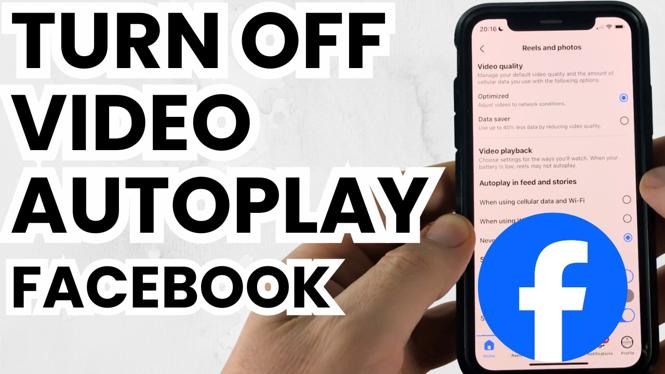
Stop Videos From Playing While You Scroll
Facebook can start playing videos in your feed and Stories as you scroll past them. You can change this from the Facebook app’s media preferences. The setting gives you two useful choices: stop autoplay completely, or let videos autoplay only when your phone is connected to Wi-Fi.
Selecting Never Autoplay Videos is the right choice if you do not want Facebook videos to begin playing on their own. It can also help reduce mobile data use and battery drain caused by videos loading and playing in the background of your browsing.
The same Facebook autoplay setting is the one to look for on iPhone, Samsung Galaxy phones, and other Android devices. Once you change it, you can continue scrolling through Facebook without feed videos automatically playing.
Video Tutorial
Turn Off Facebook Video Autoplay
- Open the Facebook app on your iPhone, Samsung phone, or Android device.
- Select the three lines in the top-left corner of the app to open the menu.
- Choose Settings & privacy.
- Select Settings.
- Scroll down to the Preferences section.
- Select Media.
- Under Video Playback, select Autoplay in Feeds and Stories.
- Select Never Autoplay Videos.
Facebook saves the choice when you select it. You do not need to find a separate Save button. Videos in your feed and Stories should no longer begin playing automatically as you scroll.
Choose Never or Wi-Fi Only
The Autoplay in Feeds and Stories setting is where you control when Facebook is allowed to autoplay videos. The best option depends on how you use the app.
Choose Never Autoplay Videos when you want to fully turn off Facebook video autoplay. This prevents videos from starting on both Wi-Fi and cellular data. You can still choose to play a video yourself when you want to watch it.
Choose the Wi-Fi-only option if you are mainly trying to limit cellular data use. With this option selected, Facebook can autoplay videos while you are connected to Wi-Fi, but it will not autoplay them when your phone is using cellular data.
If your goal is a quieter feed with fewer distractions, Never Autoplay Videos is the more complete setting. If you like autoplay at home or on other Wi-Fi networks but want to protect your mobile data, use the Wi-Fi-only setting instead.
Check That the Setting Worked
After choosing your preferred autoplay option, return to your Facebook feed and scroll past a few video posts. With Never Autoplay Videos selected, the videos should remain stopped until you start one yourself.
If you selected the Wi-Fi-only option, test the behavior based on your connection. Videos may autoplay while connected to Wi-Fi, which is expected. They should not autoplay while using cellular data.
You can return to Settings & privacy, Settings, Media, and Autoplay in Feeds and Stories at any time to review or change the selection.
What This Facebook Setting Controls
This setting controls video autoplay in Facebook feeds and Stories. It does not remove videos from Facebook or stop you from playing videos manually. It simply changes whether Facebook starts playback automatically while you browse.
Turning autoplay off is useful when you have a limited mobile data plan, want to use less battery while browsing, or prefer that videos do not begin playing as soon as they appear on screen. The setting is quick to change, and you can switch it back later if you decide you want autoplay on Wi-Fi.
Quick Path to the Autoplay Setting
For future reference, the path is: Facebook menu, Settings & privacy, Settings, Preferences, Media, then Autoplay in Feeds and Stories. Select Never Autoplay Videos to stop Facebook videos from autoplaying.
More Facebook Tips & Tutorials:
 Subscribe Now! 🙂

Discover more from Gauging Gadgets
Subscribe to get the latest posts sent to your email.