Keep Your iPhone Display From Timing Out
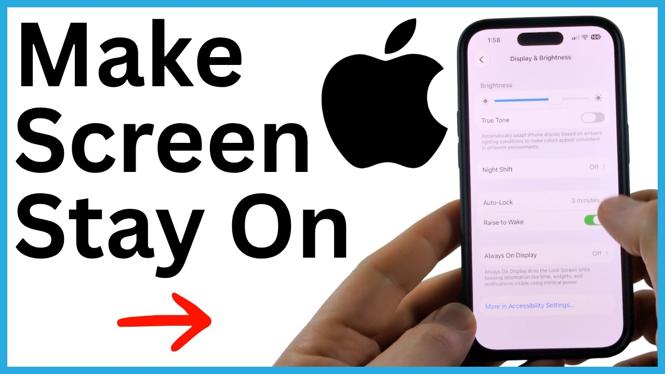
If your iPhone screen goes dark while you are reading, using a recipe, checking directions, or viewing something on screen, change the Auto-Lock setting. Setting Auto-Lock to Never keeps the display awake until you lock the iPhone yourself.
First, make sure Low Power Mode is off. Low Power Mode can prevent the display from staying on as long as you expect. You may notice it is enabled when the battery icon is yellow.
Video Tutorial
Turn Off Low Power Mode First
Before changing Auto-Lock, check your battery settings. Low Power Mode is designed to reduce battery use, so it can interfere with your goal of keeping the screen awake.
- Open the Settings app on your iPhone.
- Scroll down and select Battery.
- Find Low Power Mode near the bottom of the Battery screen.
- Turn Low Power Mode off.
When Low Power Mode is off, the battery icon returns to black instead of yellow. You can then set the display timeout without that battery-saving mode getting in the way.
Set Auto-Lock to Never
Auto-Lock controls how long your iPhone waits before it turns off the display when you are not touching it. Choosing Never stops the automatic screen timeout.
- Return to the main Settings page.
- Scroll down and select Display & Brightness.
- Select Auto-Lock.
- Select Never.
You can now close Settings. Your iPhone screen will stay on instead of turning off automatically. To turn the display off, press the power button to lock the iPhone.
When This Setting Is Useful
Setting Auto-Lock to Never is helpful when you need to see information continuously without tapping the screen every few seconds. For example, you can leave a recipe open while cooking, keep instructions visible while working, or read a long page without the display going dark.
It also helps when you are watching content or using your iPhone as a reference screen. Since the display will not time out on its own, you do not need to interrupt what you are doing just to wake it again.
Remember to Lock Your iPhone
With Auto-Lock set to Never, the screen stays lit until you manually lock the device. That can use more battery than a shorter Auto-Lock time, especially if you leave the iPhone unattended. Press the power button when you are done using it or whenever you want the display to turn off.
If you only need the screen awake for a specific task, you can return to Settings, open Display & Brightness, and choose a shorter Auto-Lock option afterward. This lets you use the Never setting when you need it while still allowing your iPhone to turn off its screen automatically at other times.
If the Screen Still Turns Off Too Soon
Check Low Power Mode again and confirm that Auto-Lock is set to Never. The two settings work together for this purpose. If the battery icon is yellow, go back to Settings, select Battery, and turn off Low Power Mode.
Once Low Power Mode is off and Auto-Lock is set to Never, the display will remain on until you lock the iPhone yourself with the power button.
More iPhone Tips & Tutorials:
 Subscribe Now! 🙂


Discover more from Gauging Gadgets
Subscribe to get the latest posts sent to your email.