Try a Force Restart First
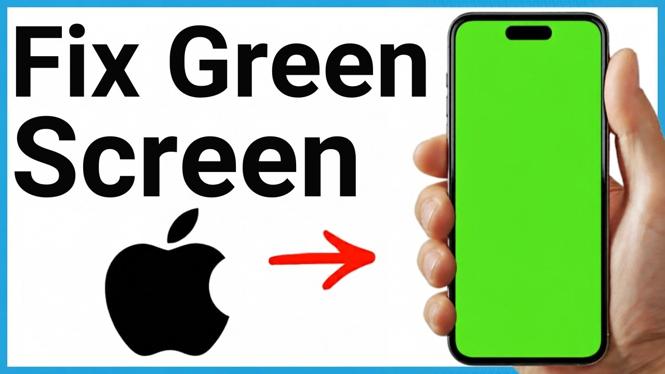
A green iPhone screen can show up as a solid green display, a faint green tint, green lines, or other display glitches. Start with the software fixes below. If your screen is completely green and you cannot see menus, or the issue remains after these steps, the display itself may need repair.
The first fix is a force restart. This can clear a temporary software problem that is affecting the colors on your display.
- Briefly press the Volume Up button.
- Briefly press the Volume Down button.
- Press and hold the Power button.
- Keep holding the button when the screen turns off.
- Release the button when the Apple logo appears.
Wait for your iPhone to start again, then check the display. If the green color is gone, you are done. If you can still use the phone and only see a green hue or occasional display issue, continue with the settings checks.
Video Tutorial
Turn Off Auto-Brightness and Color Filters
Auto-Brightness and Color Filters can change how colors appear on your iPhone. Turn them off temporarily to see if either setting is causing the green tint.
- Open Settings.
- Select Accessibility.
- Select Display & Text Size.
- Scroll to the bottom and turn off Auto-Brightness.
- Scroll up and select Color Filters.
- Turn off Color Filters if it is enabled.
Look at the screen after each change. If the tint disappears after turning off one of these options, leave that setting off. If the display still looks green, move on to the main display controls.
Check Brightness and True Tone
True Tone adjusts the display based on surrounding light. It can change the color temperature of the screen, so it is useful to test with it turned off. You should also adjust brightness manually rather than relying on automatic changes.
- Return to the main Settings screen.
- Select Display & Brightness.
- Move the brightness slider manually and check whether the green screen changes.
- Turn off True Tone.
A faint tint can be easier to notice at low brightness, so test the display at more than one brightness level. If changing brightness or disabling True Tone corrects the colors, you have identified a display setting that was affecting the screen.
Install the Latest iOS Update
An iOS update can fix display-related software issues. Check for one after testing the display settings.
- Open Settings.
- Select General.
- Select Software Update.
- Install an available update, then check the screen again after your iPhone restarts.
If no update is available, that is fine. You can still reset your settings as the next software troubleshooting step.
Reset All Settings Without Erasing Your Data
If the green screen remains, reset the iPhone settings. Do not choose the option to erase your iPhone. The Reset All Settings option resets settings while keeping your data, including photos and apps.
- Open Settings and select General.
- Scroll to the bottom and select Transfer or Reset iPhone.
- Select Reset.
- Select Reset All Settings.
- Enter your passcode and complete the reset process.
Be careful not to select Erase All Content and Settings. That is not the option used for this fix.
When the Green Screen Is a Hardware Problem
If your iPhone is still green after the force restart, display setting checks, iOS update, and settings reset, the problem is likely with the physical display. This is especially likely if the screen is solid green and you cannot see or use the menus.
At that point, take the iPhone to Apple or an iPhone repair shop for an inspection. The display may need to be repaired or replaced. The steps above cover the software-related causes, but they cannot repair a damaged screen.
More iPhone Tips & Tutorials:
 Subscribe Now! 🙂

Discover more from Gauging Gadgets
Subscribe to get the latest posts sent to your email.