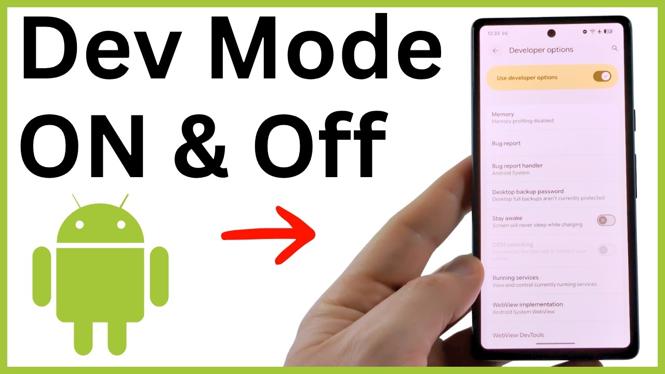
Turn on Developer Options from the Build Number screen
Developer Options is hidden on Android until you enable it. You may need it to use advanced settings such as USB debugging. The menu is easy to reveal, and you can hide it again when you are finished.
On the Android phone shown here, you enable it by tapping Build number several times. Android then asks you to verify your phone PIN before it makes the menu available.
Video Tutorial
Enable Developer Options on your Android phone
- Open the Settings app on your Android phone.
- Scroll down and select About phone.
- Scroll to the bottom of the About phone page.
- Select Build number around seven times.
- Enter your phone PIN when Android asks you to unlock the device.
- Wait for the confirmation message that says you are now a developer.
That confirmation means Developer Options is enabled. You do not need to restart your phone. The Developer Options page should now be available from the system settings.
The number of taps matters here. One tap only opens or selects the Build number item. Keep tapping until Android requests your PIN. Your PIN confirms that the person enabling these advanced controls has access to the phone.
Open the Developer Options menu
After enabling the feature, go back to the main Settings screen. Then use this path:
- Select System.
- Scroll to the bottom of the System page.
- Select Developer options.
You can now view the hidden developer settings. This is where you can enable features such as USB debugging when you need them. Make changes carefully. These settings are intended for advanced testing and device behavior controls, so changing an option without knowing what it does can affect how your phone works.
If you only need one setting, change that setting and leave the rest alone. This makes it easier to remember what you changed later. It also reduces the chance of enabling an unrelated option by mistake.
Disable Developer Options when you are done
You can turn off Developer Options without repeating the Build number steps. Open the Developer options page again and use the main switch at the top.
- Open Settings.
- Select System.
- Select Developer options.
- Turn off Use developer options.
When you turn off Use developer options, the Developer Options item is removed from the System menu. This hides the developer controls again and turns Developer Options off on your Android phone.
Keep one important detail in mind before using that switch. Changes you made inside Developer Options are no longer reflected on the phone after you turn it off. If you need an option you changed to remain active, leave Use developer options turned on.
What to do if you cannot see Developer Options
First, check that you completed the Build number taps and entered your PIN. The menu does not appear until Android displays the developer confirmation message. After that, return to the main Settings page, open System, and scroll to the bottom to look for Developer options.
If you previously turned Developer Options off, it will not stay visible under System. Repeat the process from About phone, tap Build number around seven times, and confirm with your PIN to enable it again.
Once you are finished using settings such as USB debugging, return to Developer Options and turn off Use developer options. This removes the menu from view and returns your phone to its normal settings layout.
More Android Tips & Tutorials:
 Subscribe Now! 🙂

Discover more from Gauging Gadgets
Subscribe to get the latest posts sent to your email.