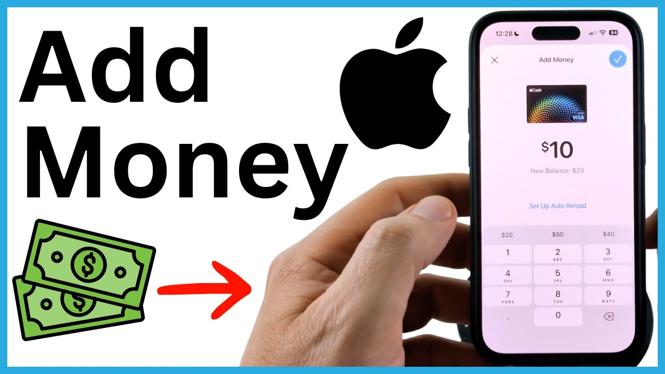
Add money from the Apple Cash card in Wallet
You can add money to Apple Cash directly from the Wallet app on your iPhone. The process uses a debit card that is already added to Apple Wallet. Once the payment is approved with Face ID, the amount is added to your Apple Cash balance.
In the steps shown here, the minimum amount you can add is $10. Make sure you enter at least that amount before continuing. You can use the balance after it arrives to send money, make purchases, or pay with Apple Pay where Apple Cash is accepted.
Video Tutorial
How to add money to Apple Cash
-
Open the Wallet app on your iPhone. If you do not see it on a Home Screen, swipe right to left until you reach the App Library. Use the search field at the top, search for Wallet, and open it.
-
Find and select Cash in Wallet. This opens your Apple Cash card and shows your current balance.
-
Select the three dots in the top-right corner of the Apple Cash screen. This opens the card options.
-
Tap Add Money.
-
Enter the amount you want to add to your Apple Cash balance. The demonstrated minimum is $10. After entering the amount, select the check mark to continue.
-
Review the card selected for the payment. You need a debit card added to Apple Wallet to add money this way.
-
If Wallet selected the debit card you want to use, leave it selected. If you need a different payment method, tap Other Card and Payment and choose from the available options.
-
When the amount and payment card are correct, double-click your iPhone’s side button, also called the power button. Confirm the payment with Face ID by looking at your iPhone.
Confirm that the money was added
After Face ID approves the payment, return to the Apple Cash card in Wallet. Your balance should reflect the amount you just added. For example, adding $10 increases the Apple Cash balance by $10 once the transaction completes.
Checking the balance right away is useful if you are adding funds before sending money to someone or making a purchase. It also helps you confirm that you used the intended debit card, especially if you have more than one card available in Wallet.
Choose the right card before approving
Wallet may automatically select a payment card during the Add Money process. Do not approve the transaction until you have checked that selection. If it is not the debit card you want to use, select Other Card and Payment before you double-click the side button.
This is the point where you can change the payment choice. Once you approve with Face ID, the selected card is charged for the amount you entered. Reviewing both the amount and card takes only a moment and can prevent adding the wrong amount from the wrong card.
If you cannot find Wallet or Cash
The App Library search is a quick way to open Wallet when its icon is not on your current Home Screen. Swipe through to the App Library, search for Wallet, then select the app from the results.
Once Wallet is open, look for the card labeled Cash. The Add Money option is reached from the three-dot menu on that card, not from a debit card’s own screen. Start from Apple Cash each time you want to top up the balance.
What you need before you start
- An iPhone with the Wallet app available.
- An Apple Cash card shown as Cash in Wallet.
- A debit card added to Apple Wallet for the payment.
- At least $10 to add, based on the minimum shown during the process.
- Face ID access so you can approve the transaction after double-clicking the side button.
After the transaction is approved and your balance updates, the money is held in your Apple Cash balance. You can then keep it there until you are ready to use it for a payment or send it to another person.
More iPhone Tips & Tutorials:
 Subscribe Now! 🙂

Discover more from Gauging Gadgets
Subscribe to get the latest posts sent to your email.