Turn Off Pro Mode From Your Facebook Profile
You can disable Pro Mode directly from your Facebook profile in the Facebook app. The setting is available on iPhone, Android phones, and Samsung phones. Once you turn it off, your profile returns to a regular personal account setup rather than using Facebook professional mode.
You do not need to use the Professional Dashboard to make this change. Start from your profile, open the profile options, and use the Turn off Pro mode option under Profile mode.
Video Tutorial
How to Disable Facebook Professional Mode
- Open the Facebook app on your phone.
- Go to your Facebook profile. You can select your profile icon next to What’s on your mind? to get there.
- Select the three dots in the top-right corner of the app while viewing your profile.
- Scroll down to the Profile mode section.
- Select Turn off Pro mode.
- Select Continue when Facebook shows information about the change.
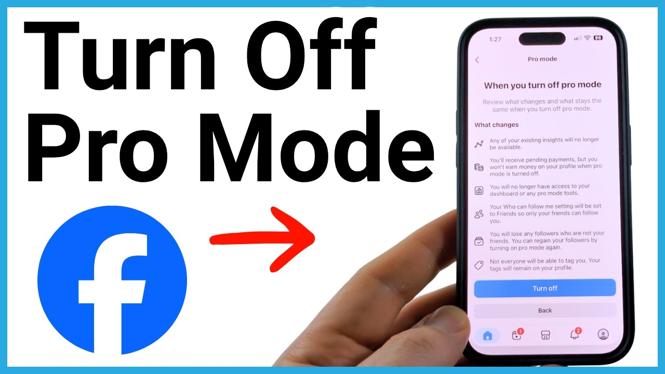
- Read the information if you want, then select Turn off to confirm.
Facebook will then turn off Pro Mode for the profile. You can close the confirmation screen and return to the Facebook home screen.
What Changes When You Turn Off Pro Mode
Professional mode adds features intended for creators and people managing a public-facing profile. Turning it off moves your profile back to standard personal features. This removes access to the Professional Dashboard and creator tools associated with Pro Mode.
Your public follower settings also stop being part of the professional profile setup. The change is useful if you enabled Pro Mode to test its features, no longer need creator tools, or simply want your Facebook profile to work as a personal account again.
The confirmation screen shown after you select Continue provides Facebook’s current details about the change. Review that screen before selecting the final Turn off button, especially if you use any professional features on the profile.
If You Cannot Find Turn Off Pro Mode
First, make sure you are on your own Facebook profile. The option demonstrated here appears after selecting the three dots on the profile screen, not from the main Facebook home screen.
Then look for the Profile mode section in the menu. The option is named Turn off Pro mode. If you do not see that section or option, avoid changing unrelated account settings. Your profile may already be using the regular personal mode, or Facebook may be showing a different set of options for that profile.
Also make sure you are using the Facebook app on the account where Pro Mode is enabled. If you use more than one Facebook account, check that you have switched to the correct profile before confirming the change.
Turn Pro Mode Back On Later
Turning off Pro Mode changes the mode on your profile. If you decide you want professional features again later, check your Facebook profile for the available profile mode controls. Facebook can change the labels and options it displays, so use the setting shown on your own profile rather than assuming a control will be in the same location forever.
For now, the key path is simple: open your profile, select the three dots, find Profile mode, select Turn off Pro mode, and confirm the choice. After that, your Facebook profile is back in personal account mode.
More Facebook Tips & Tutorials:
 Subscribe Now! 🙂

Discover more from Gauging Gadgets
Subscribe to get the latest posts sent to your email.