Restart your Samsung phone from the power menu
A normal reboot closes the system and starts your Samsung phone again. It can help when an app is slow, the phone feels laggy, or something on the screen is not working as expected. You do not need to erase anything to restart the phone.
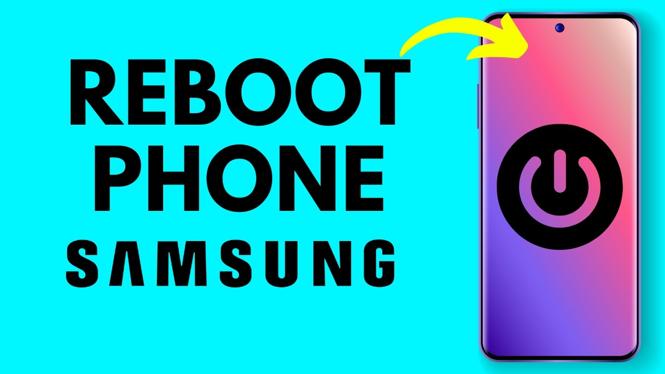
The quickest method is to use the Side key, which may also be called the power button. Hold it briefly to open the power menu, then choose the restart option. Your phone will shut down and turn itself back on.
- Locate the Side key on your Samsung phone.
- Press and hold the key for a second or two until the power menu appears.
- Tap Restart.
- Tap Restart again to confirm.
Wait while the phone reboots. The Samsung logo may appear before you return to the lock screen or Home screen. Avoid pressing buttons repeatedly while the restart is in progress.
Video Tutorial
Use the power menu if the Side key opens an assistant
On some Samsung phones, holding the Side key can open Gemini or another voice assistant instead of showing the power menu. This does not stop you from restarting the phone. You can use the assistant to bring up the same power controls.
- Press and hold the Side key.
- When the voice assistant appears, say, Turn off my phone.
- Wait for the power menu to appear.
- Tap Restart.
- Tap Restart one more time.
The command opens the menu with the phone power options. Select Restart, not a power-off option, if you want the phone to turn back on automatically. After confirming, let the phone complete the reboot before opening apps again.
Restart Samsung from Quick Settings
You can also reboot your Samsung phone from the Quick Settings area. This is useful when you do not want to use the Side key, or when holding the key opens the assistant and you would rather use the screen controls.
- Start at the top-right corner of the display, near the battery icon.
- Swipe down from the top right to open the control menu.
- Look near the top of the menu for the power icon.
- Tap the power icon.
- Tap Restart.
- Tap Restart again to confirm.
The swipe location matters. Swiping down from the top center shows notifications instead of the control menu used here. If you only see notifications, start again near the battery icon at the top right, then swipe down.
What to expect after you restart
A restart is different from simply turning the screen off. Your Samsung phone closes the active system session, powers down, and starts again. Open apps may need a moment to load after the phone comes back on. You can then check the app or feature that was causing trouble.
Restarting is a good first step for minor problems, such as an app that has stopped working, a phone that feels unusually slow, or a temporary screen glitch. It does not remove your photos, messages, apps, or settings. It only refreshes the phone by starting it again.
Choose the method that fits your phone
Use the Side key method when the power menu opens normally. If the Side key brings up Gemini or another assistant, ask it to turn off the phone, then select Restart from the power menu. Use Quick Settings when you prefer an on-screen option.
All three methods end at the same place: tap Restart, then tap it once more to confirm. Once the Samsung phone finishes starting up, use it normally and see if the temporary issue is gone.
More Samsung Phone Tips & Tutorials:
 Subscribe Now! 🙂


Discover more from Gauging Gadgets
Subscribe to get the latest posts sent to your email.