How To Fix Controller Drift on Xbox
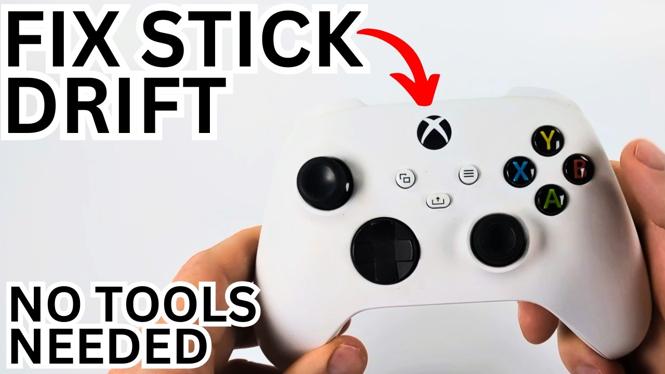
Controller drift can be a frustrating problem for gamers, especially when it interferes with gameplay. Whether you’re playing intense battles in your favorite games or just casually navigating menus, a drifting analog stick can disrupt your experience. Fortunately, in this guide, we will walk you through the steps to fix controller drift on your Xbox controllers, specifically focusing on Xbox One and Xbox Series X/S controllers. You won’t need any special tools, just some simple methods that can be executed in 2026.
Video Tutorial
To enhance your understanding, watch the tutorial below that demonstrates how to fix controller drift on your Xbox controllers.
Why You Might Be Looking for This Tutorial
If you’ve been experiencing problems with your Xbox controller where the analog sticks seem to move on their own or don’t return to the center position, you’re likely seeking solutions to regain full control. This issue, commonly known as controller drift, can stem from dust accumulation, wear and tear, or calibration issues over time. Fixing it can save you from purchasing a new controller and allow you to continue enjoying your gaming sessions without interruption.
Steps to Fix Controller Drift on Xbox
- Calibrate Your Controller: Start by accessing the settings on your Xbox console. Navigate to ‘Devices & connections’, then select ‘Accessories’. Plug in your controller, and use the ‘Configure’ option to calibrate the analog sticks. Follow the on-screen instructions to complete the calibration process.
- Check for Updates: Ensure that your controller’s firmware is up to date. In the same ‘Accessories’ menu, look for a ‘Firmware version’ option and update if necessary. Firmware updates can improve performance and reduce issues like drift.
- Clean Your Controller: Dust and debris can accumulate around the analog sticks, causing drift. Use a soft cloth and a small amount of isopropyl alcohol to gently clean around the joystick. Be cautious not to let any liquid seep inside the controller.
- Reset Your Controller: If calibration and cleaning don’t fix the issue, consider resetting your controller. You can do this by turning off your Xbox and unplugging the power cable for about 10 seconds. Replug the power cable and reconnect your controller to see if the drift persists.
- Consider Professional Repair: If none of the above methods work, it might be time to seek professional help. Many gaming repair shops can fix controller drift by replacing faulty components or performing more intricate repairs.
Conclusion
Controller drift can significantly hinder your gaming experience, but fortunately, it’s a fixable issue. By following the steps outlined in this guide, you can restore your Xbox controller’s performance and regain control in your games. Whether through calibration, cleaning, or professional help, you can defeat controller drift and enhance your gaming enjoyment.
More Xbox Series X Tips & Tutorials:
 Subscribe Now! 🙂

Discover more from Gauging Gadgets
Subscribe to get the latest posts sent to your email.