Create your poll from the YouTube app
You can make a vote poll on YouTube as a Community post. Viewers can vote directly from the post on your channel, and you can use the results to ask for feedback or choose a future video topic.
The steps below use the YouTube app on an iPhone or Android phone. You can also create polls on desktop, but this walkthrough follows the mobile app.
Video Tutorial
How to make a vote poll on YouTube
-
Open the YouTube app on your phone.
-
Select your profile icon in the bottom-right corner of the app.
-
At the top of the next screen, select View channel.
-
Scroll down until you see the menu on your channel. Scroll that menu to the right, then select Post.
-
Under Published, select Give a shout out to start creating a post.
-
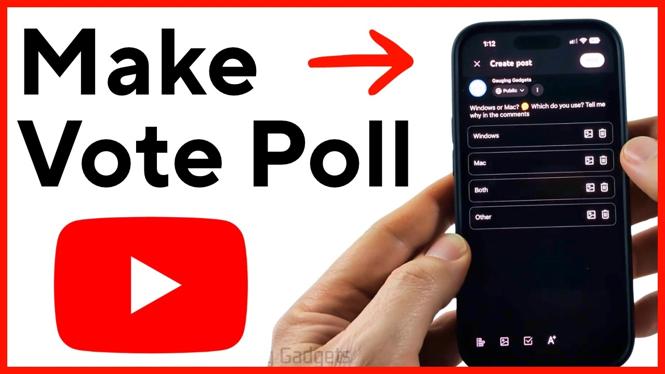
Select the icon at the bottom of the post editor that adds voting options. This changes the post into a poll.
-
Type your question in the Ask your community field. Keep the question clear, so people can understand what they are voting for without needing extra context.
-
Enter your answers in the available option fields. A poll starts with two options. Select Add option if you want to add more choices.
-
Add up to four answer choices. If you need to remove one, select the trash can next to that option.
-
Select the image icon if you want to add images to the poll. Images can help when the choices are easier to recognize visually, such as different products, thumbnails, or locations.
-
When your poll is ready, select Post to publish it to your channel.
Set poll visibility or schedule it
Before publishing, you have a couple of extra controls available. Select the three dots beside Public. From there, you can change the visibility of the post or select Schedule.
Scheduling is useful when you want the poll to appear at a specific time, such as before you film an upcoming video. You can schedule it for a later date and choose to have the post removed from your channel automatically. Select Done after making your settings, then post the poll.
If you do not need to schedule anything, leave the post set to Public and publish it right away.
Check that your YouTube poll is live
After you post the poll, return to the Post section of your channel. Refresh the page if needed. Your new poll should appear there, and viewers can begin voting.
A Community poll gives you a quick way to collect opinions without asking people to leave a long reply. You can ask which video they want next, which topic confused them, or which option they prefer. The answer with the most votes gives you a clear starting point for your next decision.
Tips for getting more useful poll responses
Make each option distinct. If two answers mean almost the same thing, people may split their votes between them, which makes the result harder to use. Four choices are available, but you do not need to use all four. Two or three focused choices often make voting easier.
You can also add a short request in the question or post text asking viewers to explain their choice in the comments. The votes show you the overall preference, while comments can tell you why viewers picked that answer.
Try to make the poll relevant to your channel. A question related to an upcoming upload, a recurring series, or a choice your audience cares about is more likely to get meaningful votes. Once the results come in, use what your viewers selected to guide your next post or video.
More YouTube Tips & Tutorials:
 Subscribe Now! 🙂


Discover more from Gauging Gadgets
Subscribe to get the latest posts sent to your email.