Create a QR Code From Your Phone or Computer
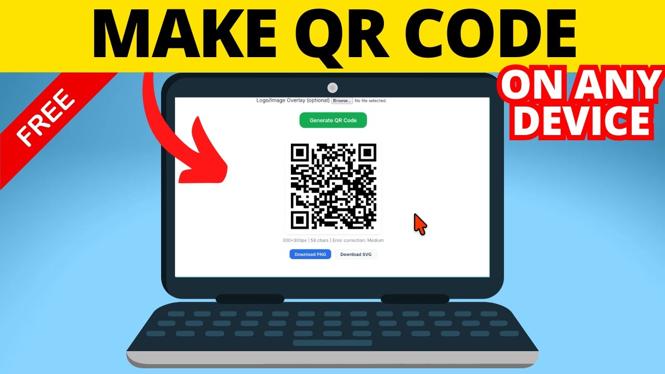
You can make a QR code on an iPhone, Android phone, Windows PC, Mac, Chromebook, or another device with a web browser. QR Code Gadget runs in your browser, so you do not need to install an app to create the code.
The tool includes templates for URLs, plain text, email, SMS messages, Wi-Fi networks, contact information, and crypto. You can also adjust the colors, choose a size, and add a logo before saving your finished QR code.
Video Tutorial
Generate Your QR Code
Start by deciding what you want someone to receive after scanning the code. For example, a URL QR code can open a website or YouTube channel. A Wi-Fi QR code can share your network details, and a contact QR code can provide your phone information.
- Open QR Code Gadget in the browser on the device you are using.
- In the top menu, select Generator. You can also select the QR Code Generator option on the page.
- Choose the template that matches what you want the QR code to do. Select URL to send people to a website.
- Enter the information for the selected template. For a URL code, paste or type the complete web address into the box.
- Select Generate to create a QR code preview.
For a website link, check the address carefully before generating the final version. A QR code will send people to exactly what you enter, so a missing character or incorrect link can lead to the wrong place.
Customize the QR Code Colors and Size
The generator provides advanced options for changing the look of your code. These options are useful if you want the QR code to match a channel, business card, flyer, sticker, or other design.
- Find the advanced options in the generator.
- Change the Size if you need a larger or smaller QR code image.
- Choose a different foreground color to change the color of the QR code pattern.
- Choose a background color if you do not want a plain white background.
- Select Generate again to update the preview with your changes.
Keep enough contrast between the foreground and background colors. A dark pattern on a light background is generally easier for phones to scan. If you use a color combination that is too similar, scanning can become unreliable.
Add a Logo in the Center
You can place an image or logo in the middle of the QR code. This can make the code easier to recognize when you are sharing it as part of your own content or branding.
- Select Browse in the logo option.
- Choose the logo image from your device.
- Review the logo example shown by the generator.
- Select Generate to create the updated QR code with the logo in its center.
After changing the colors or adding a logo, scan the code with a phone before printing or posting it. This is a quick way to confirm that the QR code still opens the URL, shares the Wi-Fi details, or performs the action you intended.
Save the QR Code Image
Once the preview looks right, save the image so you can use it in a document, video, social post, sign, or sticker.
- On a computer, right-click the generated QR code image.
- Select Save image as and choose where to save it.
- You can also download the QR code as a PNG image using the download option in the generator.
- On a phone or other device, use the available download or save option to store the PNG image.
A PNG file works well for most uses because you can place it in images, videos, documents, and other projects. Keep the saved version somewhere easy to find, especially if you plan to reuse the same QR code later.
Use the Right Template for the Job
The URL template is a good choice for websites, product pages, videos, and social profiles. Use the text template when the scan should show a short message. Choose email or SMS when you want the scan to start a message with the relevant information ready.
For a Wi-Fi network, use the Wi-Fi template rather than putting your password into a plain text QR code. For personal details, the contact template is the better fit. Selecting the matching template helps the scanner handle the information in the intended way.
QR Code Gadget generates and scans QR codes directly in the browser on your device. That means you can create a code from the device you already have available, then save the finished image when it is ready to share.
Discover more from Gauging Gadgets
Subscribe to get the latest posts sent to your email.