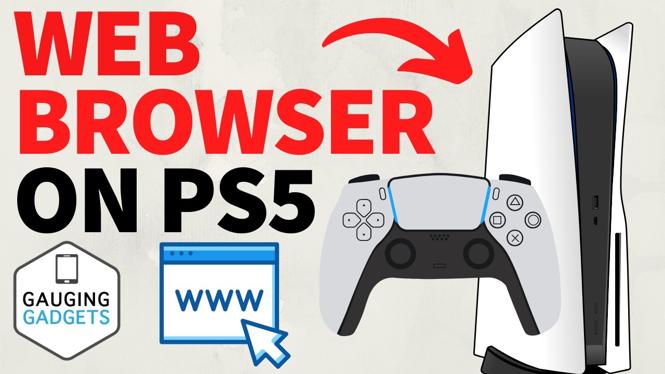
Open the Hidden PS5 Browser Through YouTube
The PS5 does not have a normal web browser app in its games and media area. You can still open a browser window through the YouTube linking screen. Before you start, turn on the PS5 Zoom feature. This makes the browser page much easier to see and use on your TV.
You will use the PlayStation button and Square button together to start Zoom, then use the left joystick and X button to move around and select items.
Video Tutorial
Enable Zoom on Your PS5
Zoom is an accessibility feature, but it is useful here because the browser window starts at a small size. Enable it once, then you can use it whenever you open this browser workaround.
- From the PS5 home screen, open Settings from the top menu.
- Select Accessibility.
- Under Display and Sound, select Zoom.
- Turn on Enable Zoom.
- Check the Zoom controls shown on this screen. To start and adjust Zoom, press the PlayStation button and Square button on your DualSense controller.
After Zoom is enabled, press Circle to return to the main Settings list.
Open the Browser Window
The browser is available during the process of linking YouTube to your PlayStation account. You are using the browser option on that screen, rather than a separate PS5 browser app.
- In Settings, scroll down and select Users and Accounts.
- Select Link Services.
- Select YouTube.
- Choose Link.
- On the linking screen, select Use Browser.
This opens the browser window on your PS5. It may look small at first, which is why you enabled Zoom in the previous section.
Zoom In and Navigate Pages
Press the PlayStation button and Square button together after the browser appears. This starts Zoom and enlarges the current browser view. Press X to save the zoomed position.
Use the left joystick to move around the page. Move down to the Terms option and select it. This opens another page where you can access the menu in the upper-right corner.
At the top right, select the dots menu. The menu lets you choose services including YouTube or Google. Select Google to reach a search page.
Search for Websites on PS5
Once Google is open, you can search for the site or information you need. For example, type a website name into Google, select the matching result, and open the page in the PS5 browser window.
Use the left joystick to move between links, page controls, and text fields. Press X when an item is highlighted to select it. If a page is difficult to read, use the PlayStation button and Square button again to start Zoom and adjust the view.
This method is useful when you want to check a guide, search for information, or open a website without switching to a phone or computer. Keep in mind that you are accessing the web through the YouTube linking browser, not through a dedicated PS5 web browser application.
Quick PS5 Web Browser Steps
- Go to Settings > Accessibility > Zoom, then enable Zoom.
- Return to Settings and open Users and Accounts > Link Services > YouTube.
- Select Link, then choose Use Browser.
- Press the PlayStation button and Square button to zoom in, then press X.
- Select Terms, open the dots menu at the top right, and choose Google.
- Search for a website and use the left joystick and X button to navigate.
More PS5 Tips & Tutorials:
 Subscribe Now! 🙂

Discover more from Gauging Gadgets
Subscribe to get the latest posts sent to your email.