Make Your Samsung App Icons Bigger or Smaller
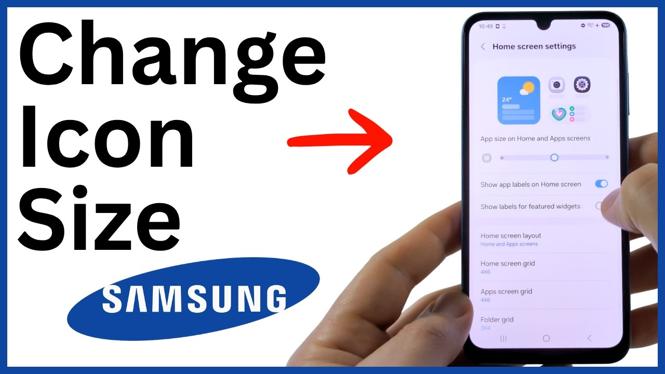
You can change app icon size on a Samsung Galaxy phone from the home screen settings. Samsung gives you two controls for this: App size and the home or app screen grid. The App size setting makes a small adjustment, while the grid setting changes how many apps fit on the screen.
If you want larger icons, use a grid with fewer spaces. If you want smaller icons and more room for apps, use a grid with more spaces. You can set the home screen grid and app screen grid separately, so your home screen and app drawer do not have to use the same layout.
Video Tutorial
Change App Icon Size in Samsung Home Screen Settings
- Go to your Samsung phone’s home screen.
- Long press an empty area of the home screen. Keep holding until the menu appears at the bottom of the screen.
- Select Settings.
- At the top of the settings screen, find App size.
- Select an App size option to make a small change to the size of your app icons.
- Scroll down and select Home screen grid to change the layout of the home screen.
- Choose the grid size you want. For example, selecting 5×6 instead of 4×6 makes the app icons smaller and fits more apps on the home screen.
- Select Done to save the grid setting.
After you select Done, you should see the new icon layout on your home screen. A larger grid number means more app positions are available, so each icon takes up less space. A smaller grid gives each app more room, which makes the icons appear larger.
Adjust Icons in the App Drawer Too
Your Samsung phone also has a separate setting for the app screen, which is the screen that contains your full app list. Changing the home screen grid does not automatically mean the app screen will use the same layout.
- Return to the home screen settings by long pressing an empty area of the home screen and selecting Settings.
- Scroll down and select App screen grid.
- Pick the grid layout you prefer.
- Select Done to apply the change.
Choose a larger grid, such as 5×6, if you want more apps visible in the app screen at once. This reduces the size of the icons. Choose a smaller grid if larger icons are easier for you to see and tap.
Which Setting Should You Change?
Use App size first if you only need a minor change. This is useful when you like the number of apps currently shown on each page but want the icons to be slightly bigger or smaller.
Use Home screen grid when you want to control how many apps fit on each home screen page. This setting has a more noticeable effect because it changes the spacing and number of icon positions. For example, moving from 4×6 to 5×6 creates space for an additional column of apps, so the icons become smaller.
Use App screen grid when you want to change the size and density of icons in your app list. You can use a roomy home screen with larger icons while keeping a denser app screen for faster browsing, or set both grids the same for a matching layout.
Quick Layout Tips
If icons are hard to tap, start with a smaller grid. Fewer positions on the screen leave more space around each app icon. This can make the home screen easier to use without moving your apps manually.
If you have several apps on your home screen, try a larger grid. More positions let you keep more apps on one page and reduce the need for extra home screen pages. The same idea applies to the app screen grid when you want to scroll through fewer pages of installed apps.
You can return to these settings at any time. Long press an empty area on the home screen, select Settings, then adjust App size, Home screen grid, or App screen grid again. Your icon size and layout changes are applied after you choose Done for the grid setting.
More Samsung Phone Tips & Tutorials:
 Subscribe Now! 🙂

Discover more from Gauging Gadgets
Subscribe to get the latest posts sent to your email.