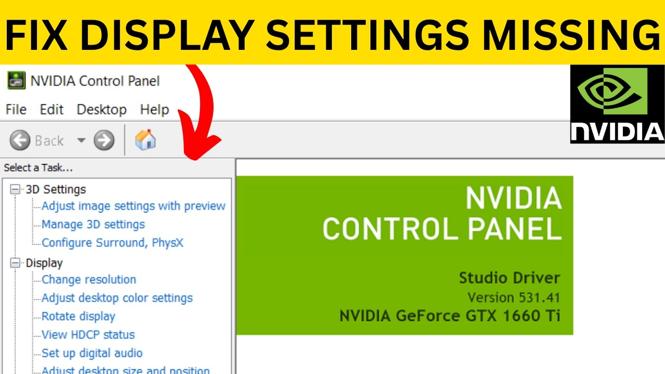
If the Display section is missing, grayed out, or empty in NVIDIA Control Panel, Windows may be using integrated graphics for your screen instead of your NVIDIA GPU. Start by confirming that Windows detects the NVIDIA card, then check your laptop graphics mode, reinstall the driver, and verify NVIDIA services.
These steps apply when options such as Change resolution, Set up multiple displays, and desktop color settings do not appear. On laptops, the built-in screen can be connected to the integrated graphics chip by design. In that situation, switching to discrete graphics is usually the important fix.
Video Tutorial
Confirm Windows detects your NVIDIA graphics card
First, make sure the NVIDIA GPU is connected and working. Device Manager gives you a quick way to check this before changing drivers or BIOS settings.
- Right-click the Windows Start button on the taskbar.
- Select Device Manager.
- Find and expand Display adapters.
- Look for your NVIDIA graphics card in the list.
If your NVIDIA card appears under Display adapters, Windows is detecting it. Continue with the next steps. If it does not appear, the issue needs to be resolved before NVIDIA Control Panel can provide display controls for that GPU.
Turn off Hybrid Mode on a laptop
Many laptops use a MUX switch to choose which graphics chip drives the built-in display. When Hybrid Mode is enabled, the laptop screen can run through the integrated graphics chip instead of the NVIDIA card. That can cause the NVIDIA Control Panel Display settings to disappear.
Open the control app included with your laptop and look for its graphics settings. The name and location differ by manufacturer. On the Lenovo Legion 5 shown in the video, the setting is in Lenovo Vantage.
- Open your laptop’s built-in control app.
- Open its gaming or graphics settings.
- Look for a setting such as Hybrid Mode, Display Mode, or Graphics Device.
- Turn off Hybrid Mode, or select the NVIDIA graphics card if that option is available.
- Restart the laptop if the app asks you to do so.
On a Lenovo Legion 5, open Gaming Settings, then check Legion Edge. Turn off Hybrid Mode so the built-in display uses the NVIDIA GPU rather than integrated graphics.
Set the graphics device in BIOS if needed
If your laptop app does not provide a graphics mode setting, check the BIOS. Only change the graphics selection if you see an option that matches your computer. The wording and location vary between laptop models.
- Right-click the Windows Start button and select Settings.
- Select System.
- Scroll down and select Recovery.
- Under Advanced startup, select Restart.
- In recovery mode, select Troubleshoot.
- Select Advanced options, then UEFI Firmware Settings.
- Select Restart to enter the BIOS.
In the Legion 5 BIOS used in the video, the main page has a Graphic Device option with Dynamic Graphics and Discrete Graphics. Select Discrete Graphics. This changes the MUX switch so the laptop display uses the NVIDIA GPU. Save the BIOS changes before you exit, then boot back into Windows and check NVIDIA Control Panel again.
Update the NVIDIA driver with a clean installation
A damaged or outdated driver can also prevent NVIDIA Control Panel display settings from showing. Check for an update in the NVIDIA app, then use the clean installation option instead of an express installation.
- Select the arrow to expand the taskbar notification icons.
- Right-click the NVIDIA icon and select NVIDIA app.
- Select Drivers.
- Select the refresh button to check for updates.
- Download and install an available driver update.
- If Windows asks for permission, select Yes.
- Choose Custom instead of Express installation.
- Select Clean installation, then select Continue.
A clean installation removes the existing driver and installs it again while restoring driver settings and profiles to their defaults. When the installation finishes, restart the computer and open NVIDIA Control Panel to see if the Display section has returned.
Make sure NVIDIA services start automatically
If the settings are still missing, verify that NVIDIA services are running. Services that do not start correctly can stop NVIDIA components from loading as expected.
- Select the Windows Start button.
- Type services and open the Services app.
- Find entries with NVIDIA in the name.
- Right-click an NVIDIA service and select Properties.
- Set Startup type to Automatic.
- If the service is not running, select Start.
- Repeat this for the NVIDIA services listed, then restart your computer.
After the restart, reopen NVIDIA Control Panel. If Windows detects the GPU, the laptop is set to use discrete graphics where applicable, the driver is cleanly installed, and NVIDIA services are running automatically, the Display settings should be available again.
More NVIDIA Tips & Tutorials:
 Subscribe Now! 🙂

Discover more from Gauging Gadgets
Subscribe to get the latest posts sent to your email.