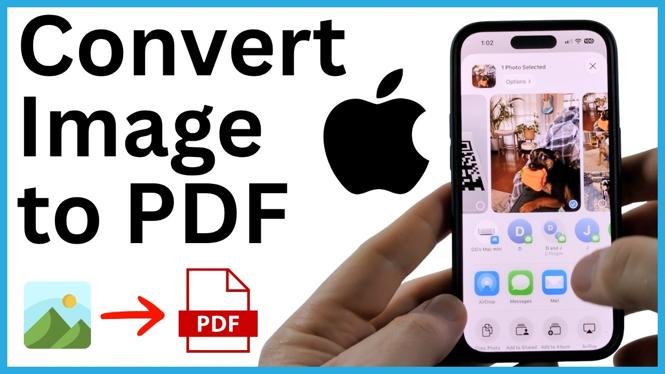
You can turn a photo, screenshot, JPG, or HEIC image into a PDF directly on your iPhone. You do not need to install another app. The built-in Photos app and Files app can create the PDF and save it where you need it.
This is useful when a school, workplace, email recipient, or online form asks for a PDF instead of an image file. Once saved, the PDF is ready to attach, share, or keep in a folder on your iPhone.
Video Tutorial
Convert an image to a PDF on iPhone
Start with the image in the Photos app. This method works for photos you took with your iPhone, downloaded pictures, screenshots, and common image formats such as JPG and HEIC.
- Open the Photos app on your iPhone.
- Find the image you want to convert, then open it.
- Tap the Share icon in the bottom-left corner of the screen.
- Scroll down through the sharing options and select Print.
- On the print options screen, tap the Share button at the top.
- Select Save to Files.
- Enter a name for the PDF if you want to change it.
- Choose the folder where you want to store the file on your iPhone.
- Tap Save.
Your selected image is now saved as a PDF file in the location you chose.
Check that the PDF was saved
Open the Files app after saving. Go to the folder you selected during the Save to Files step. You should see the new PDF using the name you entered, or the default name if you left it unchanged.
Tap the file to open it. It will open in the iPhone PDF viewer, where you can confirm that the image appears as a PDF document. This quick check is helpful before you attach the file to an email or submit it to a website.
Share the PDF after creating it
Once the PDF is in Files, you can use it like other documents on your iPhone. Open the PDF, then use the sharing controls when you need to send it. Saving it to Files first also makes it easier to find later, instead of searching through your full photo library again.
If you are sending paperwork, use a clear file name before saving. For example, a name that includes the document type and date is easier to recognize than a default camera image name. Keep the file in a folder you will remember, especially if you need to upload the same PDF again.
Why use the Print option?
The Print option is the built-in route shown here for converting the open image into a PDF. You are not required to actually print anything. Instead, you move from the print options to the Share button, then save the resulting document to Files.
This keeps the process on your iPhone and avoids installing a separate image-to-PDF app for a single photo. It also gives you a PDF copy that is separate from the original image in Photos, so your original photo stays in your library.
Before you send the file
Open the saved PDF once and make sure it is the correct image. If the image contains private information, check the folder you selected and only share the PDF with the intended recipient. You can keep the original image in Photos and use the PDF copy when a document format is required.
For another image, repeat the same steps from the Photos app. Open the picture, choose Share, select Print, use the Share button on the print options screen, and choose Save to Files.
More PDF Tools & Tutorials:
 Subscribe Now! 🙂

Discover more from Gauging Gadgets
Subscribe to get the latest posts sent to your email.