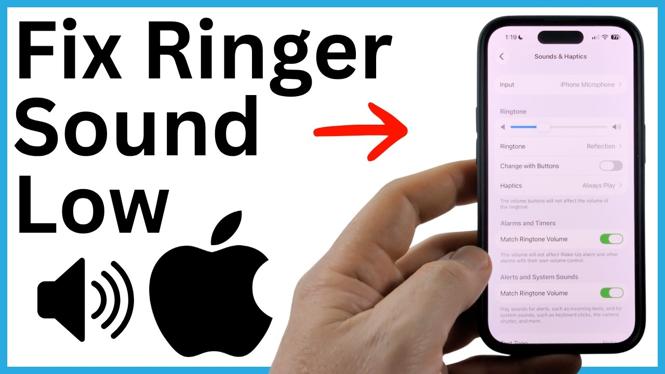
Your iPhone can ring at a low volume even when the volume buttons look turned up. By default, those buttons may control media volume instead of your ringtone. Raise the separate ringtone setting first, then check the settings that can silence or reduce incoming-call alerts.
Video Tutorial
Raise the Ringtone and Alerts volume
The Ringtone and Alerts slider controls the sound you hear when someone calls or when an alert arrives. It is separate from the volume used for music, videos, games, and other media.
- Open the Settings app on your iPhone.
- Scroll down and select Sounds & Haptics.
- Find the Ringtone and Alerts volume slider near the top of the screen.
- Drag the slider to the right to make your ringtone louder.
Your iPhone plays an example sound as you move the slider. Use that preview to set a level that you can hear from nearby without making every notification uncomfortably loud.
If the slider was near the left side, this is usually the fix. Your media volume could have been high while your ringtone volume stayed low, which makes the issue confusing.
Let the side buttons change ringer volume
You can also use the volume buttons on the left side of the iPhone to adjust the ringtone. This only works when Change with Buttons is enabled. Otherwise, the buttons normally adjust media volume instead.
- Stay in Settings and open Sounds & Haptics.
- Locate Change with Buttons below the ringtone volume controls.
- Turn on Change with Buttons.
- Use the volume up button on the left side of your iPhone when you need to raise the ringer volume later.
This option is useful if you change locations often. For example, you can lower the ringer before a meeting and bring it back up afterward without returning to Settings. Just remember that the buttons can now change the ringtone level, so it is possible to lower it accidentally.
Check that Do Not Disturb is off
A louder ringtone will not help if Do Not Disturb is active. Do Not Disturb is part of Focus, and it can prevent your iPhone from making noise for incoming calls and notifications.
- Open Settings.
- Select Focus.
- Check whether Do Not Disturb is turned on.
- If it is active, swipe down from the top-right corner of the screen to open Control Center.
- Select the moon icon to turn off Do Not Disturb.
After you turn it off, ask someone to call you or call your iPhone from another phone. This gives you a quick way to confirm that the ringer is audible at the volume you selected.
Turn off Attention Aware Features if the ringer still drops
Some iPhones use Attention Aware Features to detect when you are looking at the screen. This can automatically lower certain alert sounds, including your ringtone. If the ringtone seems loud at first but becomes quieter when you pick up or look at the phone, this setting may be the reason.
Locate Attention Aware Features in your iPhone Settings and turn it off. Then test an incoming call again. Disabling it stops your iPhone from automatically reducing the ringtone based on its attention detection.
Test the settings together
For a reliable setup, set the Ringtone and Alerts slider to a level you can hear, enable Change with Buttons if you want side-button control, and make sure Do Not Disturb is off when you expect calls. If your ringer still sounds unexpectedly quiet, turn off Attention Aware Features and test once more.
These settings affect different parts of how your iPhone handles calls. Checking all of them helps you avoid missing calls because the ringtone volume is low or an alert-related setting is reducing the sound.
More iPhone Tips & Tutorials:
 Subscribe Now! 🙂

Discover more from Gauging Gadgets
Subscribe to get the latest posts sent to your email.