Turn Silent Mode Off So Your iPhone Rings Again
If your iPhone is not making sound for calls, texts, or alerts, Silent Mode may be on. The fastest fix depends on the controls on the side of your iPhone. Older iPhones use a small Ring/Silent switch above the volume buttons. Newer iPhones may use the Action Button, the Settings app, or a Control Center control instead.
When Silent Mode is off, your iPhone should show Ring or confirm that Silent Mode is off. Use the method that matches what you see on your device.
Video Tutorial
Use the Ring/Silent Switch on Older iPhones
Check the left side of your iPhone, directly above the two volume buttons. If there is a small physical switch in that spot, this is the Ring/Silent switch. It gives you a quick way to change between ringing and silent without opening an app.
- Find the small switch above the volume buttons.
- Move the switch forward, toward the front of the iPhone.
- Look for the on-screen message that says Ring.
That message confirms Silent Mode is turned off. If you move the switch back the other way, the iPhone displays Silent, which means Silent Mode is enabled. If your phone is unexpectedly quiet, it is easy for this switch to get moved accidentally while handling the phone.
Turn Off Silent Mode With the Action Button
Some newer iPhone models do not have the small Ring/Silent switch. Instead, they have an Action Button in that area. If the Action Button is set up to control Silent Mode, holding it can do the same job as the older switch.
- Locate the Action Button above the volume buttons.
- Press and hold the button.
- Check the confirmation on screen to make sure Silent Mode is now off.
The Action Button can be set up for different actions, so holding it will only change Silent Mode if it has been configured for that purpose. If holding the button does not remove Silent Mode, use the Settings or Control Center method below.
Remove Silent Mode in Settings
The Settings app gives you another way to control Silent Mode on newer iPhones. This is useful when you do not want to use the side button, or when you are trying to confirm the current setting from the screen.
- Open the Settings app.
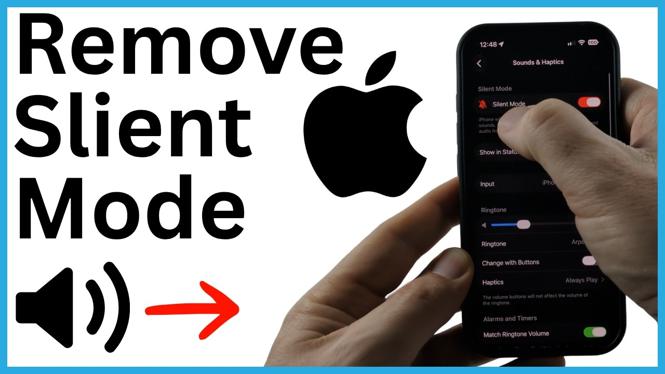
- Scroll down and select Sounds & Haptics.
- At the top of the screen, find Silent Mode.
- Turn the Silent Mode toggle off.
Once the toggle is off, Silent Mode is removed and your iPhone can ring for incoming calls and other alerts. This method is also helpful if you are not sure which side control your iPhone has.
Use Control Center From Anywhere
Control Center is often the quickest screen-based option because you can open it from anywhere on your iPhone. Look for the bell control in Control Center. Its color tells you whether Silent Mode is active.
- Swipe down from the top-right corner of the screen to open Control Center.
- Find the bell icon.
- If the bell is red, Silent Mode is enabled.
- Tap the red bell to turn it off.
Your iPhone displays Silent Mode Off after you tap the control. A red bell means Silent Mode is on, while turning that red bell off removes Silent Mode. You can use the same control later if you need to silence your phone again.
If Your iPhone Seems Stuck on Silent
Start by checking the control that applies to your iPhone. On an iPhone with the physical switch, move it forward until you see Ring. On a newer iPhone, open Settings, choose Sounds & Haptics, and make sure the Silent Mode toggle is off.
Then open Control Center and inspect the bell. If it is red, tap it and wait for the Silent Mode Off message. This gives you a second way to verify that Silent Mode is no longer enabled.
If you have an Action Button, remember that it may not be assigned to Silent Mode. In that case, use the Settings toggle or the Control Center bell rather than relying on the button. Checking the on-screen Ring or Silent Mode status after each change makes it clear which setting is active.
Choose the Fastest Method for Your iPhone
Use the physical Ring/Silent switch when your iPhone has one. Use the Action Button if it is set to manage Silent Mode. For a screen-based option, turn Silent Mode off in Settings or tap the red bell in Control Center. Each method removes Silent Mode and helps prevent missed calls, texts, and alerts caused by an accidentally muted ringer.
More iPhone Tips & Tutorials:
 Subscribe Now! 🙂

Discover more from Gauging Gadgets
Subscribe to get the latest posts sent to your email.