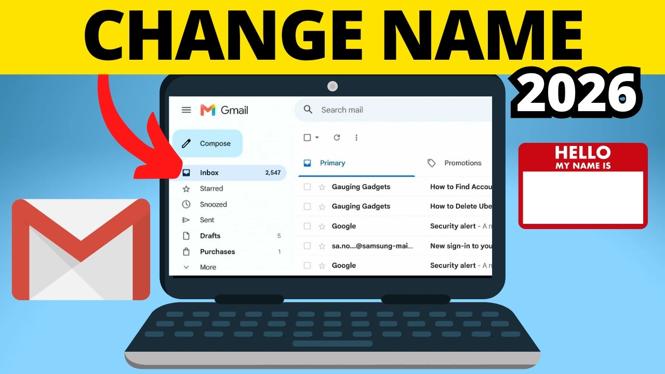
Change the name people see on your emails
Gmail has two name settings that do different jobs. You can change the name recipients see when you send an email, or change the name attached to your Google Account. These are not always the same name.
If your goal is to update the sender name shown in someone’s inbox, use the Send mail as setting in Gmail. If you want to update your name across your Google Account, use the account’s Personal information page instead.
Video Tutorial
Update your Gmail sender name
This is the setting to use when you only want to change the name displayed next to emails you send. For example, you might want emails to show your full name instead of a shortened version of it.
You can edit this name from Gmail settings on gmail.com.
- Go to gmail.com and sign in to the Gmail account you want to update.
- Select the gear icon near the top of Gmail.
- Select See all settings.
- In the top settings menu, select Accounts and Import.
- Find the Send mail as section. This shows the current name recipients see when you send them an email.
- Select edit info next to the name you want to change.
- Enter the full name you want to use, or edit the name as needed.
- Select Save Changes.
Your new sender name will be used when you send emails from that Gmail address. This change does not require you to create a new Gmail account or change your email address.
Change the name on your Google Account
The Gmail sender name setting is useful for outgoing email. Your Google Account name is broader. It is the name connected to your Google Account itself.
Use these steps if you want to change that account name rather than only the name shown to people receiving your Gmail messages.
- In Gmail, select your profile icon in the top-right corner.
- Select Manage your Google Account.
- Select Personal information from the left menu.
- Select Name.
- Change your name as needed.
- You can also add a nickname to your Google Account on this page.
This updates the name in your Google Account. It is a separate change from editing the name under Send mail as, so check both places if you want the same name used for your account and for outgoing Gmail messages.
Which Gmail name setting should you use?
Choose the setting based on where you need the new name to appear.
- Use Send mail as: Change the name recipients see when they receive an email from you.
- Use Google Account Name: Change the name on your Google Account, including the option to add a nickname.
For many people, changing the sender name is enough. It fixes the name displayed on new messages without changing the email address itself. If you also want your Google Account details to match, update the account name through Manage your Google Account.
Check that the new name is correct
After saving the Gmail sender name, send a new email to an address you can access. Check the name displayed on the received message. This lets you confirm the name is shown exactly as you entered it.
If you changed the Google Account name, return to Personal information and select Name to review the saved details. If the sender name and Google Account name need to match, make sure both settings contain the version of your name you want to use.
You can repeat these steps whenever you need to update your Gmail name again. The sender name change is handled in Gmail settings, while the account-wide name is managed from your Google Account.
More Gmail Tips & Tutorials:
 Subscribe Now! 🙂

Discover more from Gauging Gadgets
Subscribe to get the latest posts sent to your email.