Use Your Camera First
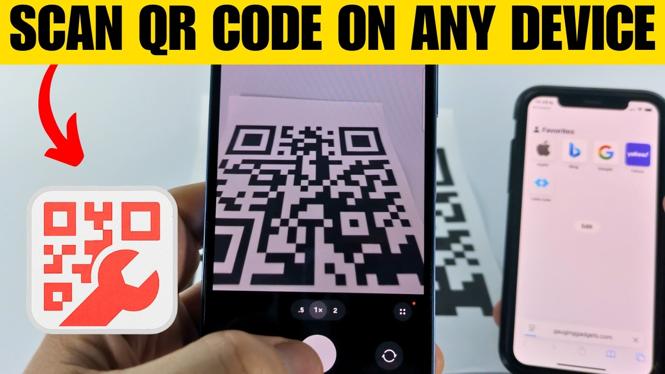
Most phones can scan a QR code directly from the built-in camera app. You do not need to install a separate scanner just to open a QR code link. This works on iPhone and Android phones, including Samsung Galaxy devices, as long as the camera recognizes the code.
- Open the Camera app on your phone.
- Point the camera at the QR code so the entire code is visible on screen.
- Hold the phone steady for a moment. A link or result should appear.
- Select the displayed link to open the QR code’s contents.
If the QR code is printed, this is usually the quickest method. You can also scan a code shown on another screen. Avoid glare, keep the code in focus, and make sure no part of the square pattern is cut off.
If your camera does not show a result, or you are using a Chromebook, laptop, desktop computer, tablet, or another device, use QRCodeGadget instead. It also gives you an option when you do not have a working camera.
Video Tutorial
Scan a QR Code With QRCodeGadget
QRCodeGadget.com is a browser-based QR code scanner that you can use on any device with a supported browser and camera. Open the site, then choose QRCodeScanner. Allow the browser to access your camera when prompted.
- Go to QRCodeGadget.com in your device’s web browser.
- Select QRCodeScanner.
- Allow access to your camera if your browser asks for permission.
- Place the QR code inside the camera view.
- Wait for the code to scan automatically.
- Check the decoded result shown on the page.
This method is useful if the built-in Camera app on your phone does not recognize QR codes. It is also a practical option for devices such as Chromebooks and Windows PCs that have a webcam.
QRCodeGadget performs the scanning and decoding in your browser on your device using JavaScript. The scanned image is not uploaded to a server as part of the decoding process described here.
Decode a QR Code From a Photo or Screenshot
You can still read a QR code without using a camera. Take a photo of the printed QR code, or take a screenshot when the code is displayed on your phone, tablet, or computer screen. Then use the QR code decoder on QRCodeGadget to read the image.
- Save a clear photo or screenshot that includes the full QR code.
- Open the QR code decoder on QRCodeGadget.com.
- Give the site access to your images if your device requests permission.
- Choose the saved photo or screenshot containing the QR code.
- Wait for the image to decode automatically.
- Review the QR code contents shown in the result.
This is especially helpful when the QR code is already on the same device you are using. A camera cannot point at its own screen, but a screenshot gives the decoder the image it needs. It also helps when your device has no camera, the camera is damaged, or the code is in a photo someone sent you.
Tips When a QR Code Will Not Scan
Start by checking the image itself. The full QR code needs to be visible, including its outer edges and the three large square markers in the corners. A cropped, blurry, dark, or heavily reflected image may not decode correctly.
- Move closer or farther away until the code is sharp.
- Improve the lighting if you are scanning a printed code.
- Keep your device steady while using the camera.
- Use a clearer photo if the first image does not decode.
- Take a new screenshot if the code was partially cut off.
- Check that you selected the correct image before decoding.
Also be careful before opening a decoded link. QR codes can contain website addresses and other information. Confirm that the displayed result looks like the destination you expect before selecting it.
Choose the Method That Fits Your Device
Use your regular Camera app when you have a phone and the code is in front of you. Use QRCodeScanner on QRCodeGadget when the built-in scanner does not work or when you are on a computer or Chromebook with a camera. Use the QR code decoder when you have a photo or screenshot instead of a camera view.
With those three options, you can scan QR codes on an iPhone, Android phone, Samsung Galaxy, Chromebook, Windows PC, tablet, laptop, or desktop computer.
Discover more from Gauging Gadgets
Subscribe to get the latest posts sent to your email.