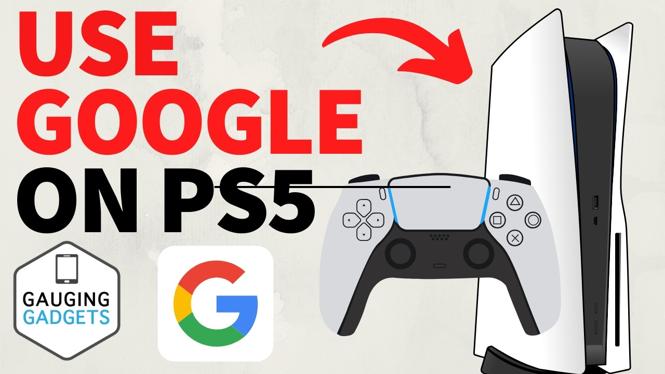
Open Google through the PS5 browser workaround
The PS5 does not include a direct web browser app that you can open from the home screen. You can still reach Google by opening the browser view used for a linked service. In this method, you use the YouTube linking page, then switch to Google from the page that loads.
Before opening the linked-service browser, enable the PS5 Zoom feature. This lets you make the browser view fill the screen, which makes it much easier to use on your TV.
You will need your PS5 controller and an internet connection. You do not need to install a browser app or use another device for these steps.
Video Tutorial
Enable Zoom on your PS5
Zoom is an Accessibility feature on the PS5. Turn it on first, since you will use its shortcut after the browser page opens.
- From the PS5 home screen, select Settings at the top.
- Select Accessibility.
- Select Zoom.
- Enable Zoom.
- Check the shortcut shown under the Zoom instructions. The shortcut used here is the PlayStation button and Square.
You can now leave the Zoom settings. Do not worry if the screen appears enlarged when you use the shortcut later. You will save the zoomed view once the browser opens.
Open the browser view from Linked Services
The next part starts from the main Settings screen again. You will use YouTube under Linked Services because its account-linking page includes a Use Browser option.
- Go back until you are on the main Settings page.
- Scroll down and select Users and Accounts.
- Select Linked Services.
- Select YouTube.
- Select Link.
- Select Use Browser.
This opens the PS5 browser view. At first, the page may not use the full TV screen. That is where the Zoom feature comes in.
Make the browser full screen
With the browser view open, press the PlayStation button and Square together to start Zoom. Press X to save the zoom level. The browser page should now be easier to see and use across more of your display.
The left stick works as the pointer control in this view. Move it to position the cursor over an item, then press X to select that item. This is how you will accept the page terms and move between Google options.
Get to Google Search
After opening the browser, select the terms link on the page before continuing. Move the pointer with the left stick, hover over Terms, and press X.
Once that page is open, move to the top-right corner and select the nine-dot menu. This menu gives you access to Google. Select Google from the options.
Google Search will load in the PS5 browser view. Select the search box, enter the words you want to search for, and then select Google Search. Search results can open websites directly in the same browser view.
Using Google with your PS5 controller
The experience is different from browsing on a computer, but the basic controls are simple. Use the left stick to move the pointer. Press X when the pointer is over a link, search box, button, or menu item you want to select.
For searches, select Google’s search field first. Use the on-screen text entry controls to type your query, then select the Google search button. You can use this to look up game guides, tips, and other websites without leaving your console for a phone or computer.
If a page is difficult to read, use the same Zoom shortcut again, PlayStation button plus Square, and press X to save the view. This can help when text or page controls are too small on your TV.
If you cannot reach Google
Start by checking that Zoom is enabled under Settings, Accessibility, and Zoom. Then return to Settings, Users and Accounts, Linked Services, and open the YouTube linking option again.
Make sure you choose Use Browser after selecting Link. Once the page appears, select Terms, open the nine-dot menu in the top-right corner, and choose Google. Following that order gets you from the PS5 settings page to Google Search.
More PS5 Tips & Tutorials:
 Subscribe Now! 🙂

Discover more from Gauging Gadgets
Subscribe to get the latest posts sent to your email.