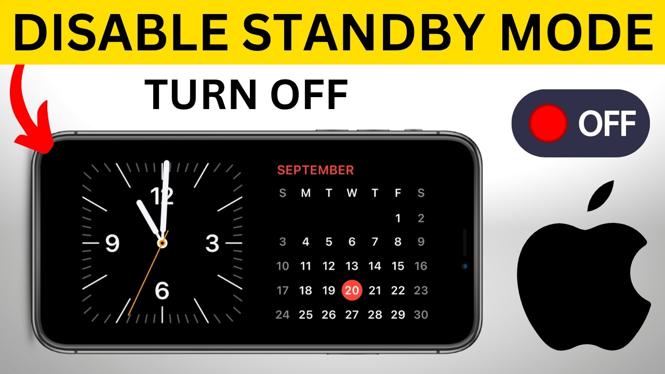
Stop StandBy Mode From Activating While Charging
StandBy Mode can turn your iPhone into a clock and widget display when it is charging in a sideways position. That can be useful on a desk or bedside table, but it is not for everyone. If you want your iPhone to stop showing that display while charging, you can switch StandBy off in the Settings app.
The setting only takes a moment to change. Once it is off, placing your iPhone sideways on a charger will no longer put it into StandBy Mode. Your iPhone will show the lock screen instead.
Video Tutorial
How to Turn Off StandBy Mode on iPhone
- Open the Settings app on your iPhone.
- Scroll down a little until you reach the second section of settings.
- Select StandBy.
- Turn off the toggle next to StandBy.
That is all you need to do. You can close Settings after turning off the toggle. The change applies when you next plug in your iPhone and place it sideways.
What Changes After You Disable StandBy
With StandBy enabled, a sideways iPhone on a charger can display the clock and widgets. The screen may also light up, which can be distracting if the phone is near your bed at night.
After you turn StandBy off, your iPhone does not enter that StandBy display when it is charging sideways. Instead, it shows the lock screen. This lets you keep the phone from acting like a bedside clock or widget display while it charges.
You do not need to change anything each time you charge your iPhone. Turning off the StandBy toggle disables the feature, so the same behavior applies whenever you connect the phone to a charger and set it on its side.
Turn StandBy Back On Later
If you decide you want the clock and widgets back, return to the same setting. Open Settings, select StandBy, then turn the StandBy toggle back on.
This is useful if you only want to use StandBy at certain times. For example, you may prefer to leave it off when charging near where you sleep, then turn it on again when you want the iPhone display visible on a desk.
Check the StandBy Setting if the Display Still Appears
If your iPhone still shows the clock and widgets while it is on its side and charging, open the StandBy page again in Settings. Make sure the main StandBy toggle is switched off. The toggle controls whether your iPhone enters StandBy Mode in that charging position.
Once the toggle is off, close Settings and charge your iPhone as usual. When you place it sideways on the charger, it should remain on the lock screen instead of switching to the StandBy display.
Quick Summary
To turn off StandBy Mode on iPhone, go to Settings, select StandBy, and switch off StandBy. Your iPhone will no longer show the StandBy clock and widgets when it is charging sideways. It will show the lock screen instead.
More iPhone Tips & Tutorials:
 Subscribe Now! 🙂

Discover more from Gauging Gadgets
Subscribe to get the latest posts sent to your email.