Reset your Android keyboard app
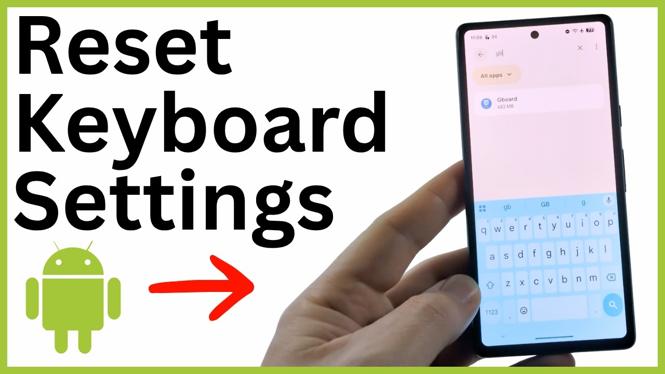
If your Android keyboard has a theme, layout, or typing behavior you do not want, clearing the keyboard app’s cache and storage resets it to its default settings. This is useful when Gboard looks different, autocorrect is acting oddly, or changes you made are hard to reverse.
The reset is done from your phone’s app settings. You need to identify the keyboard app currently in use, then clear its cache and storage. On many Android phones, that app is Gboard. Samsung phones commonly use Samsung Keyboard instead.
Video Tutorial
How to reset keyboard settings on Android
- Close the keyboard, then open the Settings app on your Android phone.
- Select Apps.
- Tap See all apps.
- Use the search option at the top of the app list to find your keyboard app. Search for Gboard if you use Google’s keyboard.
- If you have a Samsung phone, search for Samsung Keyboard. You can also search for keyboard if you are unsure which app appears on your phone.
- Select the keyboard app from the results to open its app information screen.
- Choose Storage & cache.
- Tap Clear cache.
- Tap Clear storage.
- Select Delete when Android asks you to confirm.
Open any app or text field that brings up the keyboard. Your keyboard should now be back at its default settings. For example, a custom Gboard theme is removed, so the keyboard returns to its original appearance.
What clearing storage changes
Clear cache removes temporary keyboard files. Clear storage is the step that resets the keyboard app itself. This removes the settings that caused your keyboard to look or behave differently from its defaults.
Use the correct keyboard app in the app list. Clearing Gboard will not reset Samsung Keyboard, and clearing Samsung Keyboard will not reset Gboard. The app you clear needs to be the one that opens when you tap a text box.
After the reset, check a few keyboard features you use often. Open a message draft or a search field, then confirm that the keyboard layout, theme, and typing preferences are back to the default state. If you previously changed keyboard options on purpose, you may need to set those choices again.
If you cannot find Gboard
Not every Android phone uses Gboard. Samsung phones may show Samsung Keyboard, and other phones can use a different installed keyboard app. From Settings, go to Apps and See all apps, then search for the name of the keyboard you use.
Searching for keyboard can help narrow down the list. Once you find the app, the same reset method applies: open its app information, select Storage & cache, clear the cache, clear the storage, and confirm the deletion.
If Gboard is the keyboard you normally use, select Gboard rather than an app with a similar name. The keyboard app’s information page is where Android provides the reset controls shown in this guide.
Check the keyboard after the reset
Go back to your Home screen and open something that requires typing. A messaging app, browser search box, or notes app will work. When the keyboard appears, look for the unwanted change you were trying to fix.
If the keyboard had a blue or custom theme, the reset should remove it and restore the default look. This process also returns changed keyboard settings, such as layout, autocorrect, and typing preferences, to their original state. You can then use the keyboard normally or adjust only the settings you want to change again.
Quick reset checklist
- Open Settings, then Apps.
- Select See all apps.
- Find the keyboard app, such as Gboard or Samsung Keyboard.
- Open Storage & cache.
- Select Clear cache and Clear storage.
- Confirm by selecting Delete.
- Open a text field and confirm that the keyboard is back to default settings.
More Android Tips & Tutorials:
 Subscribe Now! 🙂

Discover more from Gauging Gadgets
Subscribe to get the latest posts sent to your email.