Sign in to the same account on your new phone
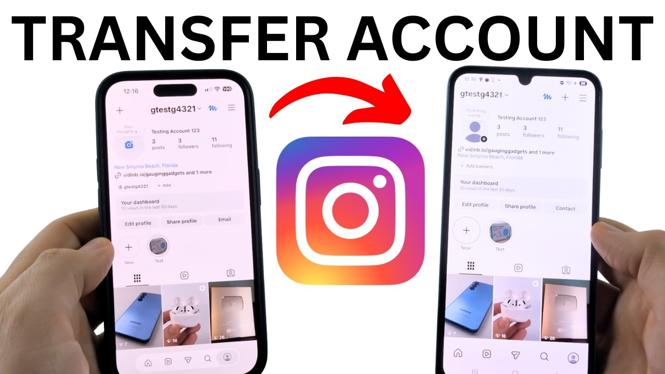
You do not need to copy your Instagram profile, posts, followers, or messages from the old phone. Those items stay connected to your existing Instagram account. To use that account on another device, install Instagram on the new phone and sign in with the same login details.
This works when moving from iPhone to iPhone, Android to Android, or between an iPhone and an Android phone. Your old phone can remain signed in while you set up the new one.
Video Tutorial
Install Instagram on the new phone
- Open the App Store if your new phone is an iPhone. On an Android phone, open the Play Store.
- Use the search bar at the top and search for Instagram.
- Open the Instagram app listing and select Install.
- Wait for the installation to finish, then select Open.
Instagram will open to its sign-in screen. You now need the login information for the account already used on your old phone.
Enter your existing Instagram login details
In the first field, enter the username, email address, or mobile phone number linked to your Instagram account. Then enter your password and continue with the sign-in process.
If you remember your username but are unsure of the exact spelling, check it on the old phone before signing in on the new one.
- Open Instagram on your old phone.
- Go to your profile.
- Select Edit Profile.
- Look for Username.
- Enter that username in the top login field on your new phone.
Once you sign in, the new phone will load the same Instagram account. Your profile, posts, followers, and messages are available because you are using the same account, not creating a replacement account.
Reset your password if you do not know it
If you cannot remember the password, select Forgot Password from the Instagram sign-in screen. You can reset access using your Instagram username and a verification code.
- Select Forgot Password.
- Enter your Instagram username.
- Select Continue.
- Check the email connected to the account for the code Instagram sends.
- Enter the code when prompted.
Instagram may ask you to create a new password after you enter the code. If it does, set the new password, then finish signing in on the new phone.
Use another recovery option if email does not work
You may not have access to the email address linked to your Instagram account, or the code may not arrive there. In that situation, select Try Another Way on the recovery screen.
Instagram may offer another way to verify the account. This can include using the phone number connected to the account or sending a notification to your old phone. Choose the available method you can access, complete the verification step, and then continue the sign-in process.
Keep your old phone nearby until you are signed in on the new one. It can help if Instagram offers it as a verification option during password recovery.
Check that the account moved successfully
After the login completes, open your profile on the new phone. You should see the same username and profile details as on the old device. You can also check your posts, follower count, and messages to confirm you signed in to the correct account.
If those details appear, your Instagram account is ready to use on the new phone. You can stay logged in on both devices. If you later decide not to use Instagram on the old phone, you can sign out of that device after confirming everything is working on the new one.
What to remember when switching phones
The important part is signing in with the account you already have. Do not create a new account if you want to keep access to your existing profile, posts, followers, and messages. Use your username, email address, or mobile phone number, along with your password. If the password is unavailable, use Forgot Password and follow the code or alternate recovery method Instagram provides.
More Instagram Tips & Tutorials:
 Subscribe Now! 🙂

Discover more from Gauging Gadgets
Subscribe to get the latest posts sent to your email.