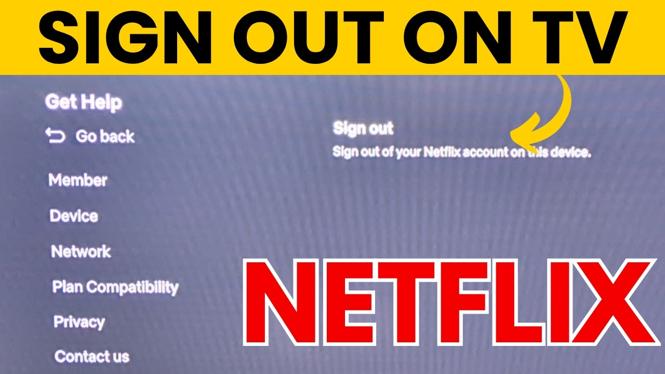
Signing out of Netflix on a TV is useful when you are switching accounts, using a hotel TV, or no longer want your account available on that device. You can usually find the sign-out option in the Netflix menu. If that menu item is missing or hard to reach, use a remote button combination to open the same screen.
Video Tutorial
Sign out through the Netflix menu
This is the normal method when you can move around the Netflix home screen. You need to be inside the Netflix app and signed in to the account you want to remove.
- Open the Netflix app on your TV or streaming device.
- If you are browsing shows or movies, press Up on the remote until you reach the top menu.
- Press Left until you see the account names area on the left side of the menu.
- Move down and select Get Help.
- Scroll to the bottom of the Get Help screen.
- Select Sign Out.
- Confirm the choice if Netflix asks you to verify that you want to sign out.
Netflix will return to its sign-in screen after the account is removed. At that point, you can sign in with another Netflix account or leave the app signed out.
Use the remote button combination if Get Help is missing
Netflix sometimes changes its menu layout. If you cannot find Get Help, the remote shortcut opens that screen directly. This method works while you are in the Netflix app on a smart TV or streaming device.
- Open Netflix and stay on any Netflix screen.
- Press these remote buttons in this exact order: Up, Up, Down, Down, Left, Right, Left, Right, Up, Up, Up, Up.
- Wait for the Get Help screen to appear.
- Go down to Sign Out.
- Select Sign Out.
- When Netflix asks if you are sure, select Yes.
The order matters, so start the sequence over if nothing happens. Press the buttons one at a time rather than holding a directional button down. Also make sure your remote is controlling the Netflix app and not a TV input or another app.
Which method should you use?
Use the Netflix menu method first if you can see Get Help. It is easier because you can follow the on-screen options. Use the button combination when the menu looks different, the account area is not visible, or you cannot locate Get Help.
Both methods lead to the same sign-out option. The shortcut does not sign you out immediately. It only opens Get Help, where you still select Sign Out and confirm with Yes.
Check that Netflix signed out
After confirming the sign-out prompt, Netflix should display a screen where you can sign in again. This is the key sign that the account was removed from that TV or streaming device. If you still see profile icons or can open shows without signing in, repeat the process and make sure you selected Yes at the final confirmation.
If you are leaving a hotel, rental, or someone else’s home, check the screen before you leave. Seeing the Netflix sign-in screen means the next person cannot simply open the app and use your profile.
Important details before you sign out
Signing out removes Netflix access from that specific TV or streaming device. It does not cancel your Netflix membership, change your password, or sign you out on your phone, computer, or other TVs. You can sign back in on the same device later with the email address and password for the Netflix account.
If you only need to change who is watching, signing out lets you replace the entire account. If you want to stay in the same account and choose a different person, use the profile choices available in Netflix instead. For a shared or public TV, signing out is the safer choice because it removes account access from that device.
Quick button sequence to remember
When the Netflix menu does not show Get Help, use this sequence: Up, Up, Down, Down, Left, Right, Left, Right, Up, Up, Up, Up. Then choose Sign Out at the bottom of the screen and select Yes to finish.
More Netflix tips & tutorials:
 Subscribe Now! 🙂

Discover more from Gauging Gadgets
Subscribe to get the latest posts sent to your email.