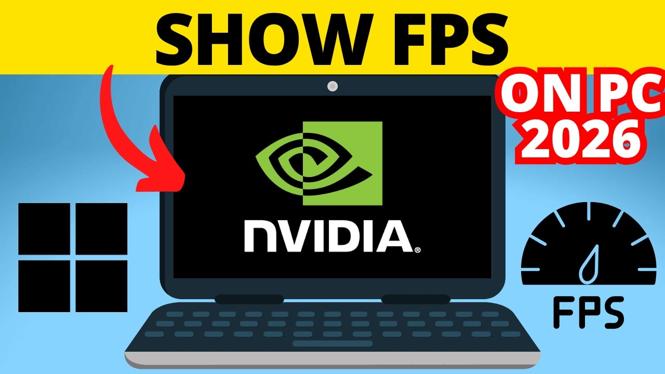
You can show a live FPS counter in games through the NVIDIA App performance overlay. First, turn on the NVIDIA overlay in the app. Then use Alt+Z to enable statistics and choose the information you want to see.
The overlay can display frame rate while you play, which is useful when you are testing graphics settings or checking for performance drops. If the frame rate reads NA while a game is running, you may need to add that game to NVIDIA Control Panel.
Video Tutorial
Turn on the NVIDIA overlay
The FPS option is part of the NVIDIA overlay, so the overlay must be enabled before you can open its statistics panel.
- Open the system tray area on the right side of the Windows taskbar. Select the small expand arrow if the NVIDIA App icon is hidden.
- Right-click the NVIDIA App icon.
- Select NVIDIA App to open it.
- In the left-side menu, select Settings.
- Find NVIDIA overlay.
- Turn on the NVIDIA overlay toggle.
- Wait a moment for the overlay to enable.
Once it is enabled, the NVIDIA App shows the keyboard shortcut for opening the overlay. The default shortcut shown here is Alt+Z. Keep that shortcut in mind because you will use it from your game or from the desktop to open the overlay controls.
Enable the FPS statistics display
After enabling the NVIDIA overlay, you can turn on the statistics panel. This is the part that displays the frame rate counter during gameplay.
- Press Alt+Z on your keyboard to open the NVIDIA overlay.
- At the bottom of the NVIDIA menu, select Statistics.
- Turn on the Statistics toggle.
- Select Statistic view to review the available display options.
- Choose the view that includes the performance information you want displayed.
The statistics screen provides a preview of the information that will appear in the overlay. Go through the available Statistic view options to select the details that make sense for you. The frame rate statistic is the FPS reading, meaning frames per second.
You can also use this area to choose where the counter appears on screen. Pick a position that stays visible without covering an important part of the game interface. The top-right corner is a common location for the FPS display.
What it means when FPS shows NA
It is normal to see NA next to frame rate when you are not currently in a game. NVIDIA does not have an active game session to measure at that point, so there is no frame rate to show.
If you launch a game and the FPS value still says NA, make sure that game is added in NVIDIA Control Panel. Adding the game lets NVIDIA identify it for monitoring. After adding it, restart your PC before testing the game again.
Add a game to NVIDIA Control Panel
- Close the statistics panel if it is open.
- Open the system tray on the Windows taskbar again by selecting the expand arrow.
- Right-click the NVIDIA App icon.
- Select NVIDIA Control Panel.
- In NVIDIA Control Panel, select Manage 3D settings.
- Select the Program Settings tab.
- Check whether your game appears in the program list.
If your game is already listed, you do not need to add it again. Restart your computer, open the game, and check the NVIDIA statistics overlay one more time.
If the game is not listed, add it using one of the two options below.
- Select Add.
- Review the list of recently opened apps shown by NVIDIA Control Panel.
- Select your game from that list.
- Select Add Selected Program.
If your game does not appear among the recently opened apps, select Browse instead. Locate the game’s EXE file, select it, and choose Open. This adds the game executable to the Program Settings list.
Check the FPS counter in your game
Restart your computer after adding a game to NVIDIA Control Panel. Then launch the game and press Alt+Z if you need to confirm that Statistics is still enabled. Once the game is running, the FPS counter should show a number rather than NA.
Use that number to compare performance as you change game graphics settings. A stable FPS reading can help you see how a setting affects performance, while sudden drops can point to moments where the game is working harder. If you do not need the counter for every session, open the overlay with Alt+Z and turn off Statistics using the same menu.
More NVIDIA Tips & Tutorials:
 Subscribe Now! 🙂

Discover more from Gauging Gadgets
Subscribe to get the latest posts sent to your email.