Turn a PDF Page Into a Photo
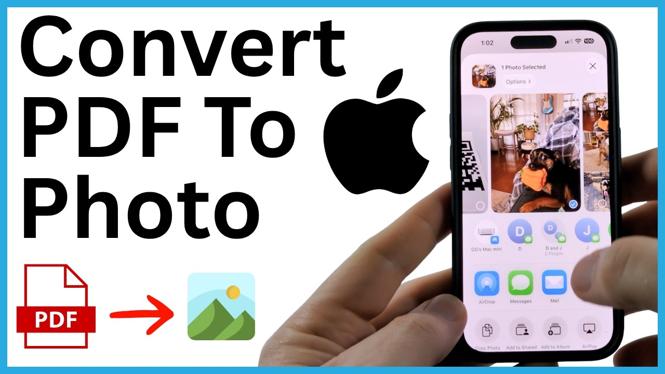
You can convert a PDF file to a photo on your iPhone without installing an app. PDFGadget.com has a free PDF to Image tool that runs in your phone’s browser. The conversion is processed on your iPhone, so the PDF and resulting image are not sent to a server.
This is useful when you need to share a single PDF page in a message, post it somewhere that accepts images, or edit the page in a photo editor. After converting the page, you can save it directly to the Photos app like any other picture.
Video Tutorial
Convert a PDF to an Image on iPhone
- Open your browser on the iPhone and go to PDFGadget.com.
- Scroll down to the Popular section and select PDF to Image. You can also open the More PDF Tools menu at the top of the site and choose PDF to Image.
- On the PDF to Image page, scroll down and tap the file selection area.
- Find and select the PDF file you want to convert. Choose the file that contains the page you want to turn into a picture.
- Choose the image format for the converted file. In this example, select JPEG.
- Review the PDF pages shown by the tool. If your PDF has more than one page, each page appears in the conversion area.
- For a one-page PDF, select Download to create and open the image file.
- When the converted image appears, press and hold the image. Select Save to Photos to add it to your iPhone Photos app.
Choose the Right Output Format
The PDF to Image tool lets you choose the image format before you download the result. The video uses JPEG, which is a practical choice for most document pages, screenshots, and images you plan to share. The converted page becomes a regular image file rather than a PDF, so apps that work with photos can use it.
Make your format choice before selecting Download. If you need to convert another page or use a different image type, return to the tool, select the PDF again, and choose the format you need before downloading.
What Happens With Multi-Page PDFs
A PDF can contain one page or many pages. After you add a multi-page PDF, PDFGadget displays all of its pages in the conversion area. Each page can be converted into an image.
For PDFs with multiple pages, the converted images need to be downloaded as a ZIP file. A ZIP file groups the image files together in one download. If you only need one page as a photo, using a one-page PDF keeps the download process simple because you can select Download and open the resulting image directly.
Save the Converted Page to Photos
Downloading the image creates the photo, but saving it to the Photos app makes it easier to use later. Once the image is visible in your browser, press and hold it. Then choose Save to Photos.
Open the Photos app afterward to confirm the image was saved. You can then share it from Photos, attach it to a message, post it where an image is required, or open it in an editing app. The saved item behaves like the other photos and images already on your iPhone.
Quick Check Before You Download
Before selecting Download, make sure you selected the correct PDF and the output format you want. Also check how many pages are in the document. A single-page PDF downloads as an image in this workflow, while a multi-page document uses a ZIP download for its converted pages.
For the fastest result, convert the page you need, open the generated JPEG, and use Save to Photos. Your PDF page is then available as a photo on your iPhone.
More PDF Tools & Tutorials:
 Subscribe Now! 🙂

Discover more from Gauging Gadgets
Subscribe to get the latest posts sent to your email.