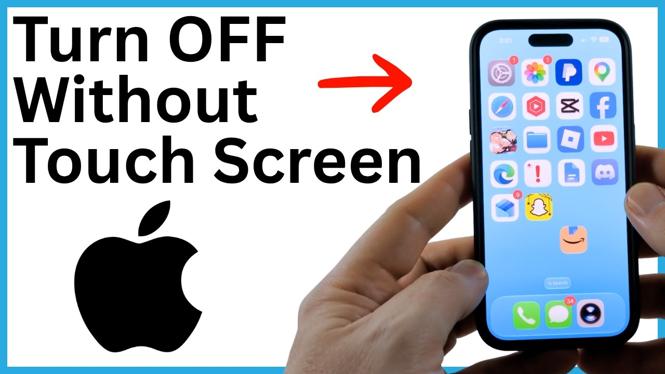
Turn off your iPhone with a voice command
If your iPhone screen will not respond, do not depend on the on-screen power slider. Use Siri to shut the phone down instead. This is useful when the display is cracked, frozen, or completely unresponsive to touch.
Start Siri, then say Turn off my iPhone. Siri can process the request without you dragging the slider across the screen. If Siri gives you a spoken prompt, follow that prompt to finish powering the iPhone off.
Video Tutorial
Steps to turn off an iPhone without the touch screen
- Make sure your iPhone is on and able to hear you.
- Start Siri using the method you already have set up on your iPhone.
- Say Turn off my iPhone.
- Listen for any response from Siri and complete the spoken confirmation if one is requested.
- Wait for the iPhone to power down. Do not press the volume or power buttons while Siri is handling the request.
This approach matters because it tells the iPhone to shut down normally. You are not trying to bring up the slider and then touch it, which is not possible when the screen has stopped accepting input.
Why the volume and power button sequence is not the same thing
The video also shows a button sequence: press Volume Up, press Volume Down, then hold the Power button. This is a useful sequence to know, but it has a different purpose from a voice shutdown.
After the quick volume button presses, holding the Power button can show the slide to power off screen. That screen still needs a touch gesture to complete a normal shutdown. If you keep holding the button beyond that point, the iPhone can restart instead. A restart turns the phone off briefly, then boots it back up. That is not the result you want if you need the iPhone to stay off.
Use Siri when your goal is to fully power off an iPhone with a dead or unresponsive touchscreen. Treat the button sequence as a separate troubleshooting step, not as a replacement for the voice command.
If Siri does not respond
Siri must already be available and able to hear your voice for this method to work. If Siri does not answer, speak clearly near the phone and give it a moment. A damaged screen does not always mean the microphones are damaged, so it is still worth trying the command even if the display is black or cracked.
If there is no Siri response, avoid repeatedly holding the Power button if you specifically need to prevent a reboot. The button combination may restart the iPhone rather than leave it powered down.
Know the difference between shut down and restart
A shutdown leaves the iPhone off. It will not return to the lock screen on its own. This can help when you need to stop using a malfunctioning phone, protect the battery while you arrange a repair, or keep the device off until the display can be used again.
A restart is different. The phone powers down for a moment and then starts again. The volume and Power button sequence can be helpful when an iPhone is frozen, but it does not meet the same need as turning the device off with Siri.
For a touchscreen problem, remember the simple command: Turn off my iPhone. It avoids the swipe slider and gives you a way to request a normal shutdown by voice.
More iPhone Tips & Tutorials:
 Subscribe Now! 🙂

Discover more from Gauging Gadgets
Subscribe to get the latest posts sent to your email.