Cancel before the next Kindle Unlimited charge
You can cancel Kindle Unlimited from the Kindle app on an iPhone, Android phone, or Samsung phone. The cancellation takes you to your Amazon membership page in your device browser, where you can turn off the membership before it renews.
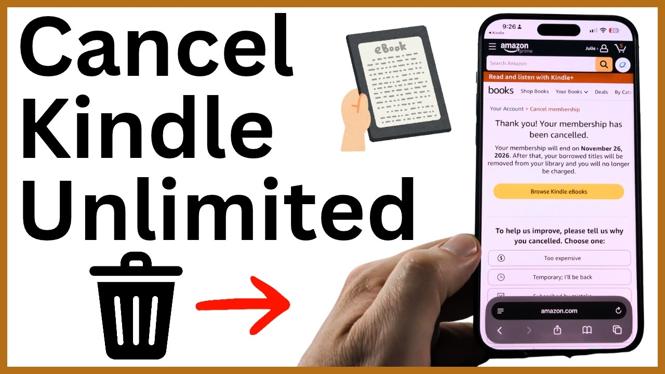
Canceling stops the next charge. It does not end your access immediately. Amazon shows the last day you can use your Kindle Unlimited membership after you complete the cancellation, so check that date before you leave the page.
Video Tutorial
Cancel Kindle Unlimited in the Kindle app
- Open the Kindle app on your phone.
- Select More in the bottom menu.
- Scroll down and choose Memberships and Benefits.
- Find your Kindle membership and select it. It may appear as Kindle Unlimited. In some cases, it may say Kindle Plus.
- Select Manage Membership.
- Wait for your device browser to open the Amazon membership page. Sign in if Amazon asks you to log in.
- Select Cancel Membership.
- Amazon may offer an option to pause your membership. Scroll down and select Cancel Membership again if you want to fully cancel instead of pause.
- Wait for the cancellation confirmation. Amazon also sends an email confirming that the membership has been canceled.
What happens after you cancel
Your Kindle Unlimited plan remains active until the date shown on the confirmation page. This is the final day you can use the membership. You will not be charged for another month after the cancellation is confirmed.
Check the end date carefully. It tells you how long you still have access under the membership you already paid for, or under your current free trial. You can continue using Kindle Unlimited until that listed date.
If you are canceling during a free trial, use the same steps. Canceling before the trial ends prevents it from rolling into a paid monthly membership. The confirmation screen and email are useful proof that the membership will not renew.
Do not choose Pause if you want to end the plan
Amazon may show a pause option before the final cancellation choice. Pausing and canceling are different actions. A pause is not the right selection if your goal is to stop the membership from continuing.
To end Kindle Unlimited, keep scrolling past the pause option and select Cancel Membership. Then make sure you reach the screen that confirms the cancellation. Leaving before that confirmation may mean the membership is still active.
Check that your cancellation went through
There are two things to look for after you finish. First, the Amazon page should say that your membership has been canceled. Second, you should receive a cancellation email from Amazon.
The confirmation also displays the last day you can use Kindle Unlimited. Save the email or take note of that date if you want to use the membership through the rest of your current period. Once that date passes, you will no longer have Kindle Unlimited access and the membership will not renew for another monthly charge.
If you cannot find the membership
Start again in the Kindle app and open More, then Memberships and Benefits. Look for the Kindle membership entry there. The label can vary, so check for either Kindle Unlimited or Kindle Plus.
Selecting Manage Membership is the key step because it opens the Amazon page where the cancellation controls appear. If the browser asks you to sign in, use the Amazon account connected to the Kindle membership. After you reach the membership page, follow the cancellation prompts until Amazon confirms the change.
More Cancel Subscription & Free Trial:
 Subscribe Now! 🙂


Discover more from Gauging Gadgets
Subscribe to get the latest posts sent to your email.