Set a Custom Date and Time on Your iPhone
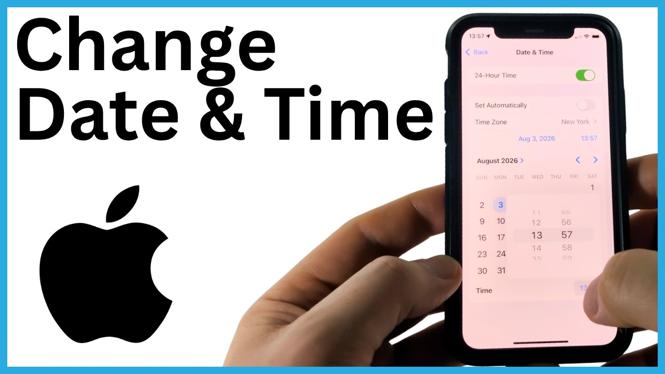
If the clock in the top-left corner of your iPhone is wrong, you can change it from the Date & Time settings. Your iPhone normally gets this information automatically through the internet or your cellular carrier. To enter your own date and time, you first need to turn off Set Automatically.
The change takes effect right away. As you select a new date or time, the clock at the top left of the screen updates to match your selection. You can then close Settings when the display shows the date and time you want.
Video Tutorial
Change the Date and Time Manually
- Open the Settings app on your iPhone. If you cannot find it, swipe from right to left until you reach the App Library. Type Settings in the search field, then select the app.
- Scroll down in Settings and select General.
- Scroll down in the General menu and select Date & Time.
- Find Set Automatically. This setting lets your iPhone use the internet or your cellular carrier to set the date and time automatically.
- Turn off Set Automatically to enable manual changes.
- Select the date and time controls that appear, then choose the date and time you want your iPhone to use.
- Check the clock in the top-left corner as you make changes. It updates when you select a different date or time.
- Close the Settings app after the date and time are correct.
Why You May Need to Turn Off Set Automatically
Set Automatically is designed to keep your iPhone clock updated without you having to change it yourself. When it is enabled, the iPhone uses the internet or your cellular carrier for the current date and time. That is useful when you want the phone to manage the clock for you.
Manual changes are only available after you turn this setting off. If you open Date & Time and cannot change the displayed date or time, check whether Set Automatically is still on. Turn it off, then return to the date and time controls.
After making a manual adjustment, take a moment to verify both parts of the display. Check the date as well as the time, especially if the problem was more than a clock that was a few minutes off. The top-left clock is a quick way to confirm that the adjustment was applied.
Check Your New Date and Time
You do not need to save the setting with a separate button. Your selection updates the iPhone display as you choose a new date or time. Look at the top-left corner before leaving Settings to make sure the result is correct.
If you need to make another adjustment, go back to Settings, select General, and open Date & Time again. With Set Automatically turned off, you can select a different date or time whenever needed.
If you would rather have the iPhone set the clock for you again later, return to the same screen and turn Set Automatically back on. The phone will then use the internet or your cellular carrier to set the date and time automatically.
Quick Summary
To change the date and time on an iPhone, open Settings, go to General, then select Date & Time. Turn off Set Automatically, choose your preferred date and time, and confirm the updated clock in the top-left corner of the screen.
More iPhone Tips & Tutorials:
 Subscribe Now! 🙂

Discover more from Gauging Gadgets
Subscribe to get the latest posts sent to your email.