Turn on Predictive Text in Keyboard settings
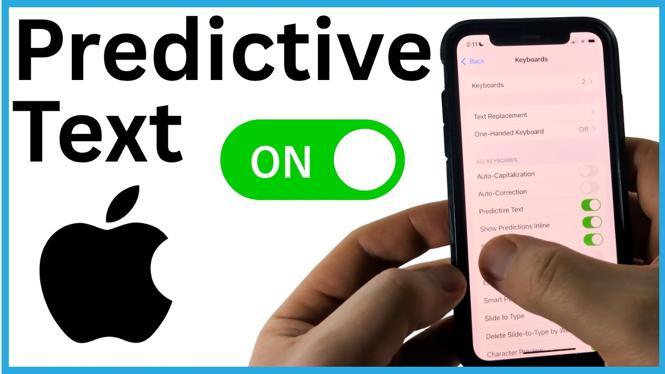
Predictive Text shows word and phrase suggestions while you type on your iPhone. When it is enabled, your keyboard can suggest what you may want to type next and can help you complete text faster.
You turn it on from the iPhone Keyboard settings. The setting applies to the keyboard across apps, so you do not need to enable it separately in Messages, Mail, Notes, or other apps where you type.
Video Tutorial
Enable Predictive Text on your iPhone
- Open the Settings app on your iPhone.
- Scroll down and select General.
- Scroll down in General and tap Keyboard.
- Find Predictive in the keyboard options.
- Turn on the switch next to Predictive.
Once the switch is on, iPhone can show predictions as you type. These suggestions can appear inline, helping you continue a word or finish the text that iPhone thinks you are about to enter.
Use the predictions while typing
After enabling Predictive Text, open any app that brings up your keyboard. Start typing a message, note, search, or email. Your iPhone will begin offering predicted text based on what you have already written.
If the suggested text matches what you want to say, keep pressing the suggested text to use it. If it is not the right suggestion, simply keep typing your own words. You are not required to use every prediction.
Predictions may become more useful as you type a full phrase or sentence. They are intended to reduce repeated typing, but you should still review the final text before you send or publish it.
Other keyboard settings to check
The Keyboard screen includes a few other options that can affect how typing feels. These settings are separate from Predictive Text, so you can choose the combination that works best for you.
- Auto-Capitalization automatically capitalizes words where appropriate, such as at the beginning of a sentence.
- Auto-Correction can correct words that iPhone believes were typed incorrectly.
- Check Spelling helps identify possible spelling mistakes.
- Smart Punctuation adjusts punctuation while you type.
If you want predictions but do not want iPhone changing your typed words, you can leave Predictive on and adjust Auto-Correction separately. That lets you receive suggestions while keeping more control over the text you enter.
If Predictive Text is not showing
First, return to Settings, General, then Keyboard, and confirm that Predictive is enabled. A switch that is off will prevent predictive suggestions from appearing.
Then test the keyboard in an app where you can enter several words. Predictive Text needs some context, so a single short word may not produce a useful suggestion. Try typing part of a sentence and check whether iPhone offers text to continue it.
Also remember that Predictive Text is a suggestion feature. It may not offer a prediction for every word, phrase, name, or specialized term. When it does show an incorrect suggestion, ignore it and continue typing normally.
Turn Predictive Text off later
If the suggestions become distracting, you can disable them at any time. Go back to Settings, select General, open Keyboard, and turn off Predictive.
This removes predictive suggestions from the keyboard without requiring you to change the other keyboard options. You can turn it back on from the same screen whenever you want to use predictions again.
More iPhone Tips & Tutorials:
 Subscribe Now! 🙂

Discover more from Gauging Gadgets
Subscribe to get the latest posts sent to your email.