Find the Free Movies section in YouTube
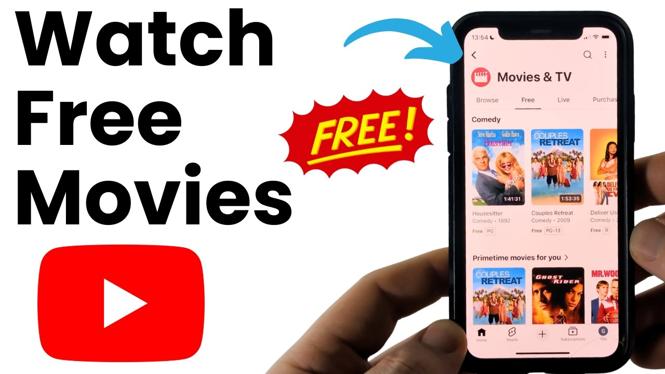
You can watch free movies on YouTube directly in the YouTube app. You do not need YouTube Premium, a movie rental, or a separate subscription. The movies in this area are officially available on YouTube and are supported by ads.
The key is getting to the Movies & TV area, then choosing the collection labeled Free or Free with ads. From there, YouTube shows full-length movies and categories you can browse on an iPhone, Android phone, or Samsung phone.
Video Tutorial
How to watch free movies on YouTube
- Open the YouTube app on your phone.
- Swipe down a little until you see the top menu in the app.
- Move all the way to the left in that menu.
- Select the small circle icon with a diamond inside it. This opens a side menu.
- Select Movies & TV.
- Wait for the Movies & TV page to load, then look for Free. On some versions of the app, this may be labeled Free with ads.
- Select that option to open YouTube’s free movie library.
- Scroll through the available movies and categories. Select a movie you want to watch, then start playing it in the YouTube app.
What Free with ads means
Movies marked Free with ads do not require a rental or purchase. You can stream them legally in YouTube, but ads play during the movie. That is how these titles are offered without a subscription fee.
This is different from a movie that displays a price to rent or buy. If you land on a title that asks you to pay, return to the Free or Free with ads collection and choose a title from that list instead.
You also do not need YouTube Premium to use this section. Premium is not required for the free ad-supported movies shown in the YouTube app.
Browse movies by category
After opening the free movie library, do not feel like you need to search title by title. Scroll down the page to see groups of movies arranged in categories. This makes it easier to find something that fits what you want to watch.
YouTube’s selection includes different types of films and can include recognizable titles. Browse the rows, open a movie’s listing, and confirm that it is part of the free collection before you start it. The available library can change, so a movie you see one time may not always appear in the same spot later.
If you already have a specific movie in mind, you can search for its name in YouTube. Check the movie’s listing carefully. A result may be free with ads, or it may only be available as a rental or purchase.
Use the same method on iPhone and Android
The process works in the YouTube app on iPhone, Android phones, and Samsung phones. Start in the app, reveal the top menu by swiping down slightly, choose the circle with the diamond icon at the far left, and open Movies & TV.
From there, select Free or Free with ads. Once you are in the collection, watching works like any other YouTube video. Tap the movie, let it load, and use the normal playback controls to pause, resume, or adjust the volume.
Quick checks if you cannot find the movies
First, make sure you are looking in the YouTube app rather than assuming the free titles will appear on the regular Home feed. The free movie collection is accessed through Movies & TV.
Next, look for both possible labels: Free and Free with ads. The wording can differ, but both point to the area with movies that do not require payment. Finally, scroll through the category rows after opening the collection. The movie you want may be farther down the page instead of appearing at the top.
When a title is listed in the free collection, you can stream it in the YouTube app without renting it or signing up for YouTube Premium. Expect ads during playback, then enjoy the full-length movie from your phone.
More YouTube Tips & Tutorials:
 Subscribe Now! 🙂

Discover more from Gauging Gadgets
Subscribe to get the latest posts sent to your email.